Main-Interface-Overview
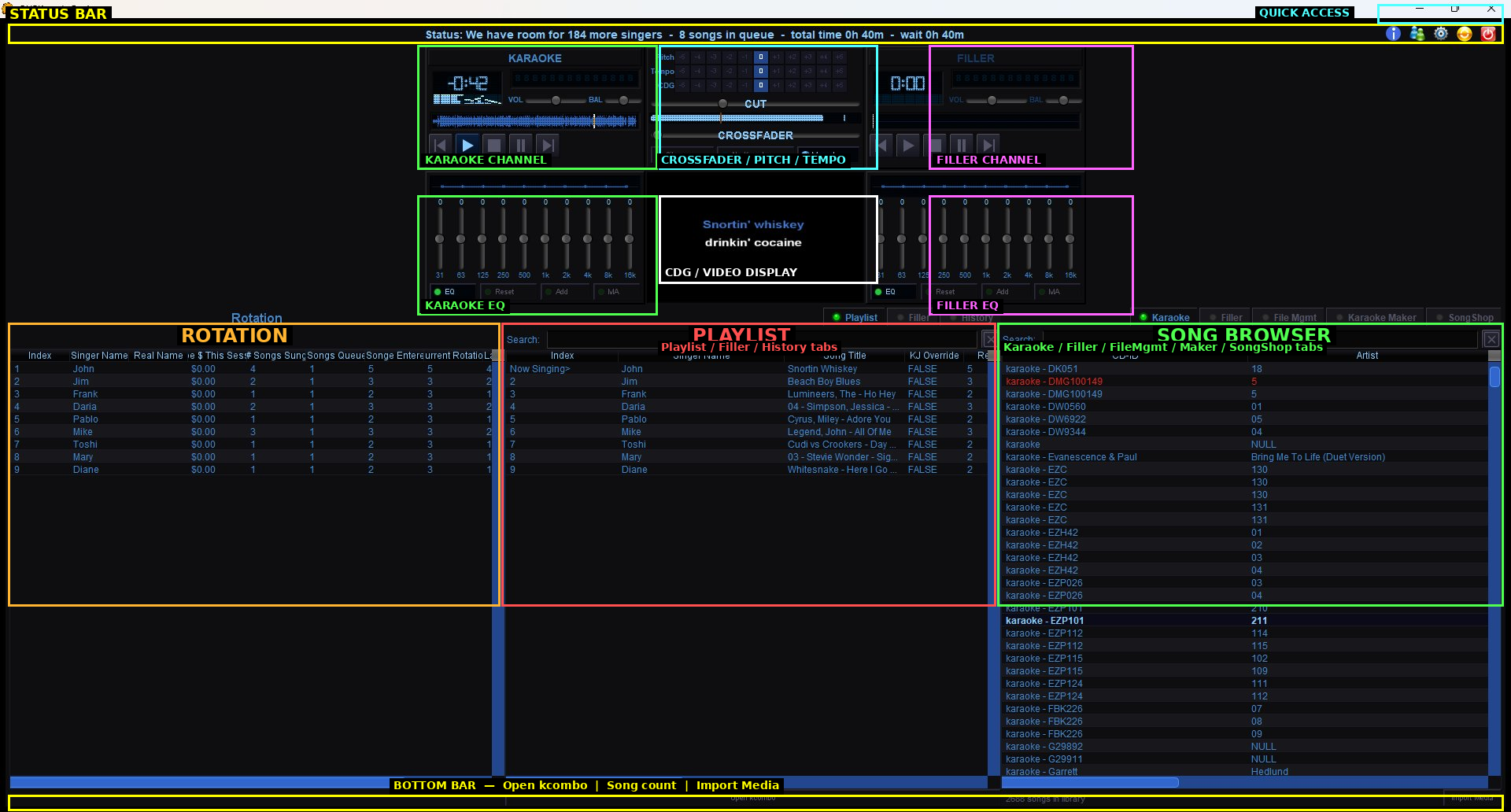
Main Interface Overview
Status Bar
The bar across the top of the window shows real-time session information: how many singer slots are available, how many songs are in the queue, total estimated time remaining, and current wait time for new singers.
Transport Row
The transport row contains the main playback controls and audio processing, divided into three sections:
Karaoke Channel (left) — The main karaoke playback area. Includes a VFD-style timer display, volume and balance sliders, a waveform/spectrum visualizer bar, and transport buttons (previous, play, stop, pause, next). Below the transport buttons is a 10-band EQ with Reset, Add, and MA (master) controls.
Pitch/Tempo and Crossfader (center) — Fine-tune controls for the current track. Pitch and Tempo each have increment/decrement buttons and a reset-to-zero button. The CDG row provides the same adjustment for CDG display timing. Below that is the crossfader — a dual-slider that blends between karaoke and filler audio. The crossfade mode selector offers three options: Silence (mute between songs), No Karaoke (filler plays between songs), and Manual (host controls the crossfade by hand).
Filler Channel (right) — A separate player for background music that plays between karaoke performances. Has its own VFD timer, volume and balance sliders, waveform display, and transport controls.
CDG / Video Display (center)
The large dark area in the center shows the CDG lyrics or video karaoke output. This is what gets mirrored to your venue's projector or external display. The current lyrics are shown here in real time as the song plays.
Lists Row
The bottom half of the screen contains three main list areas side by side:
Rotation (bottom left) — The singer rotation table. Shows every singer in the current session with their index, name, balance, session count, number of songs queued, songs sung, current rotation round, and other stats. The rotation engine determines the order singers appear here.
Playlist (bottom center) — The active song queue. Shows songs in the order they will be played, including the index, singer name, song title, KJ override status, and rotation round. The top entry marked "Now Singing>" is the currently playing track. Tabs above the playlist switch between Playlist, Filler (the filler music queue), and History (songs already played this session).
Song Browser (bottom right) — The media library browser. Search and browse your entire karaoke library by CD-ID and artist. Tabs across the top switch between Karaoke (your local library), Filler (filler music tracks), File Management, Karaoke Maker, and SongShop (Party Tyme store). Use the search bar to find songs, then drag or double-click to add them to a singer's queue.
Bottom Bar
The very bottom of the window shows an "Open kcombo" link to launch the kiosk display and a count of total songs in your library. The "Import Media" button on the far right lets you import media files directly.
Top Right Icons
The icons in the top right corner of the window provide quick access to: the About dialog, session information, the Config panel, and the projected crowd playlist display.