Settings-Hotkeys
Hotkeys
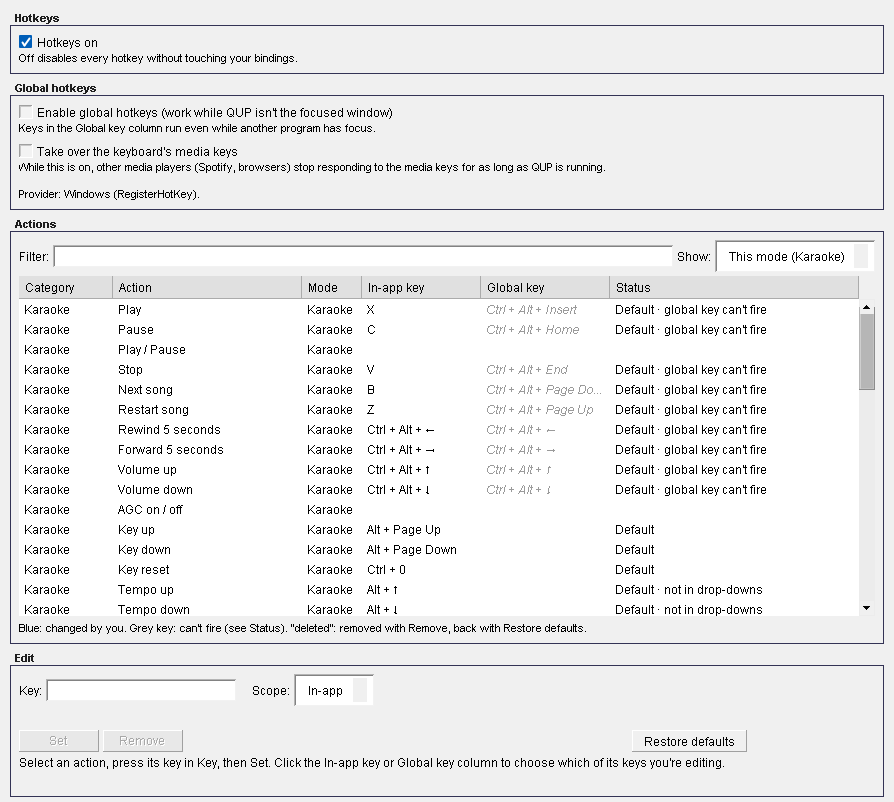
Open Preferences (Ctrl+P) and choose General → Hotkeys. Every QUP action that can have a key is listed here, with the key it has now.
The keys that matter most
These work out of the box while a QUP window has focus:
| Key | Does |
|---|---|
| X / C / V / B | Karaoke player: play, pause, stop, next song |
| Z | Restart the karaoke song |
| Shift+X / Shift+C / Shift+V / Shift+B | The same for the Filler player (next track on Shift+B) |
| Alt+Page Up / Alt+Page Down / Ctrl+0 | Key up, key down, key reset |
| Alt+↑ / Alt+↓ / Alt+0 | Tempo up, tempo down, tempo reset |
| Ctrl+Alt+← / Ctrl+Alt+→ | Back or forward 5 seconds |
| Ctrl+Alt+↑ / Ctrl+Alt+↓ | Volume up, volume down |
| J | Jump to a file (search the library) |
| Alt+Enter | Singer display fullscreen or windowed |
| F6 / Shift+F6 | Next window, previous window |
| Ctrl+1 … Ctrl+4 | Go to the library, Up Next, the rotation, the karaoke player |
| Alt+W / Alt+E / Alt+L | Show or hide the Player, the Playlist, the Media Library |
| Ctrl+P | Preferences |
| Alt+S | Skin & Layout settings |
| F1 / Ctrl+F1 | Help, About |
| Ctrl+Shift+M | Mark this moment for a problem report |
| Ctrl+Shift+P | Cheer: pull everything off the screen (when the Cheer plugin is installed) |
Ctrl+Shift+M is for when something goes wrong mid-show: press it at that moment and QUP notes the time ("Moment marked"). Later, Help → Report a problem sends the marked moments with the logs, so we can find the exact spot.
Ctrl+Shift+P takes everything Cheer is showing off the singer screen at once. It's listed only while Cheer is installed.
The list has more actions with no key yet, including every DJ deck and mixer action. Give them one as below.
Changing a key
- Select the action in the list. Filter finds it by name, category, mode or key, and Show picks this mode's actions or all of them.
- Click the Key box and press the new key, with Ctrl, Shift or Alt if you want them. Escape puts the old key back.
- Click Set.
If the key already belongs to another action, QUP asks whether to reassign it. Choose Yes to move it, or No to leave both as they were. A few keys can't be used, such as Escape; the line under Key says why.
Remove takes the key off the selected action. Restore defaults puts back every key QUP ships with (it asks first, and leaves DJ and plugin keys you set alone). Keys you changed show in blue, and the Status column says what changed.
Changes are saved when you close Preferences.
Turning hotkeys off
Untick Hotkeys on to switch every hotkey off without losing your keys. Tick it again to bring them back.
Global hotkeys (Windows)
A normal hotkey only works while a QUP window has focus. Tick Enable global hotkeys and the keys in the Global key column work even while another program is in front, for example Play on Ctrl+Alt+Insert and Next song on Ctrl+Alt+Page Down. To give an action a global key, choose Global under Scope before you click Set.
Take over the keyboard's media keys makes the Play/Pause, Stop, Next and Previous keys on your keyboard control the karaoke player. While it's on, other players (Spotify, a browser) stop answering those keys until QUP closes.
Both are off on a new install. Global hotkeys are Windows only; on macOS and Linux the keys work while a QUP window has focus.
Updated on version 2.35.0, November 1, 2026