Main-Queuing
Queuing Songs
Adding a Song from the Song Browser
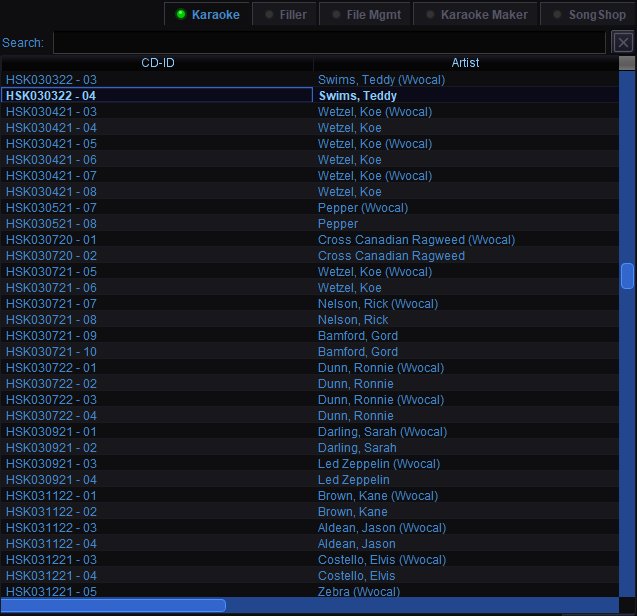
There are two ways to queue a song from the Song Browser.
Double-Click — Full Singer Entry
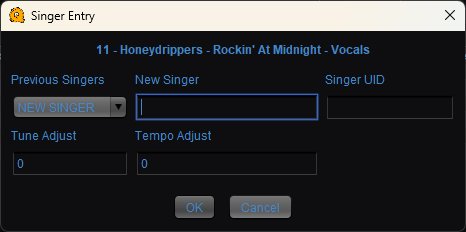 Double-click any song in the Song Browser to open the Singer Entry dialog.
The selected song title is displayed at the top of the dialog.
Previous Singers — A dropdown list of all singers already in the rotation. Select a name here to add the song to that singer's queue. If the singer you want isn't in the list, leave it set to "NEW SINGER" and type their name in the New Singer field.
New Singer — Type a new singer's name here to add them to the rotation and queue the song at the same time. This field is only used when "NEW SINGER" is selected in the Previous Singers dropdown.
Singer UID — An optional unique identifier for the singer. This is typically filled in automatically when using ID cards or the kiosk system.
Tune Adjust — Shift the pitch of the song up or down in semitones. Use this if the song is too high or too low for the singer's voice. 0 means no change.
Tempo Adjust — Speed the song up or slow it down as a percentage. 0 means no change. Positive values speed up, negative values slow down.
Click OK to queue the song or Cancel to close the dialog without queuing.
Right-Click — Fast Enqueue
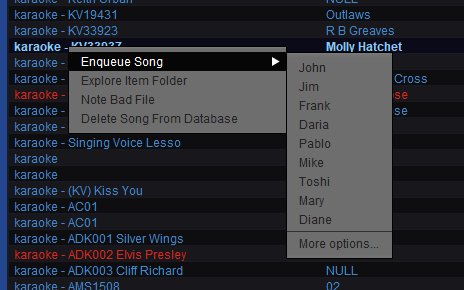 Right-click a song in the Song Browser for a quicker workflow. The context menu shows:
Enqueue Song — Hover to reveal a submenu listing every singer currently in the rotation. Click a singer's name to instantly queue the song for them — no dialog, no extra clicks. Select More options... at the bottom to open the full Singer Entry dialog instead.
Once a song is queued by either method, it appears in the Playlist under that singer's name. If the singer is new, they are added to the Rotation automatically.