Main-Playlist
Playlist
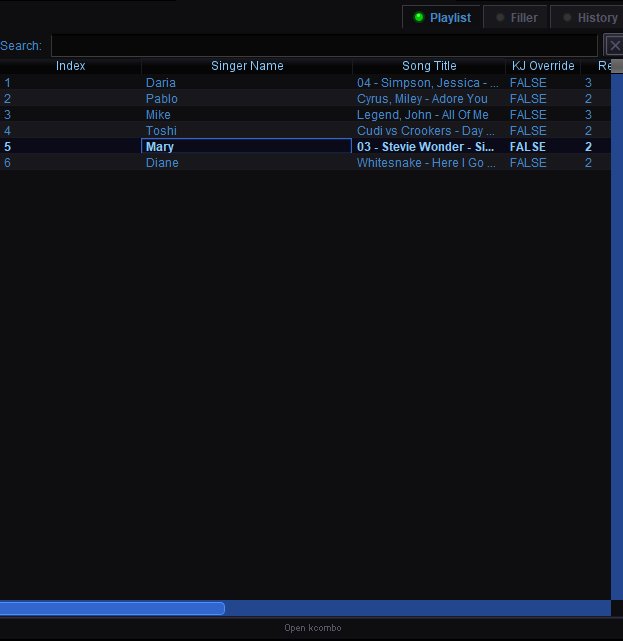 The Playlist shows all queued songs in the order they will be played. The currently playing song is always at the top. As each song finishes, the next one moves up automatically.
Drag and Drop Reordering
You can reorder songs in the playlist by dragging and dropping them. Click and hold a song, then drag it up or down to the desired position and release. The playlist updates immediately.
When you manually move a song, its KJ Override column changes to TRUE, indicating the rotation engine will no longer manage that entry's position. This lets you make on-the-fly adjustments — for example, moving a birthday singer closer to the top — without the rotation engine shuffling it back.
Note that songs within the locked zone (set in Karaoke Configuration under Dynamic Song Queue Lock and Relative Song Queue Lock) cannot be moved by singers from the kiosk or mobile interface. Only the host can drag songs within the locked zone.
Playlist Columns
Index — The position in the queue. Song at index 1 is up next (or currently playing).
Singer Name — The singer assigned to this song.
Song Title — The track that will be played.
KJ Override — Shows whether the host has manually overridden the rotation engine's placement for this entry. FALSE means the rotation engine placed it; TRUE means the host moved it by hand.
Round — The rotation round this song belongs to. Round numbers increase as the rotation cycles through all singers. A singer in round 3 has already sung twice.
Playlist Tabs
Playlist — The active karaoke queue (default view).
Filler — The filler music queue. Shows which background music tracks are lined up to play between karaoke performances.
History — A log of every song already played this session, in the order they were performed. Useful for checking what has already been sung or settling disputes about who sang what.
Search
The search bar above the playlist lets you filter the queue by singer name or song title. Click the X button to clear the search and show the full playlist again.
Right-Click Context Menu
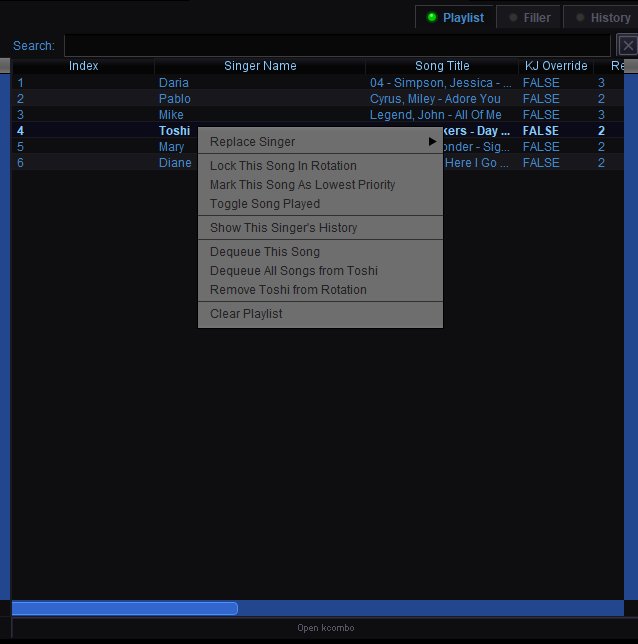 Right-click any song in the playlist for management options:
Replace Singer — Hover to see a submenu of all singers in the rotation. Select a name to reassign this song to a different singer. Useful when someone wants to hand off their song or when the host needs to correct a mistake.
Lock This Song In Rotation — Prevents the rotation engine from moving this song. The song stays exactly where it is regardless of rotation recalculations. Use this to guarantee a specific playing order.
Mark This Song As Lowest Priority — Pushes the song to the bottom of the singer's queue. The singer's other songs will play first.
Toggle Song Played — Manually marks the song as played or unplayed. Useful if a song was skipped but you want to count it, or if it was marked played by mistake.
Show This Singer's History — Opens a view of every song this singer has performed during the current session.
Dequeue This Song — Removes this single song from the playlist. The singer stays in the rotation.
Dequeue All Songs from [Singer] — Removes all of this singer's songs from the playlist. The singer stays in the rotation but has nothing queued.
Remove [Singer] from Rotation — Removes the singer entirely — both their songs and their spot in the rotation. Use this when someone leaves for the night.
Clear Playlist — Removes all songs from the entire playlist. Singers remain in the rotation but no songs are queued. Use with caution — this cannot be undone.
Open kcombo
 The Open kcombo button sits directly below the playlist. Clicking it opens the kcombo web page in your default browser. Kcombo is the singer-facing display — a full-screen view showing the current rotation, upcoming singers, and a QR code that singers scan with their phones to access the mobile queuing interface. This is the page you typically display on a TV or projector facing the crowd so everyone can see who's up next and how to queue songs from their phone.