Main-EQ
Equalizer
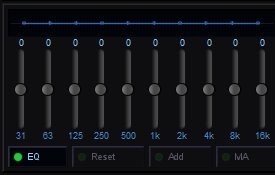
Both the Karaoke and Filler channels have their own independent 10-band graphic equalizer for shaping the audio output.
EQ Bands
The ten sliders control gain at the following frequencies: 31 Hz, 63 Hz, 125 Hz, 250 Hz, 500 Hz, 1 kHz, 2 kHz, 4 kHz, 8 kHz, and 16 kHz. Drag a slider up to boost that frequency range or down to cut it. The number above each slider shows the current gain in dB. Use the lower bands (31–250) to control bass and warmth, the mid bands (500–2k) to shape vocals, and the upper bands (4k–16k) to adjust brightness and clarity.
EQ Controls
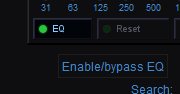
EQ — Enables or bypasses the equalizer. When the green indicator is lit, the EQ is active and processing audio. Click to toggle it off and hear the unprocessed signal. Useful for A/B comparing your adjustments.
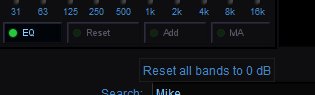
Reset — Resets all bands to 0 dB (flat). Use this to start fresh if your adjustments aren't working out.
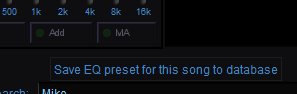
Add — Saves the current EQ curve as a preset for the currently playing song. The preset is stored in the database and linked to that specific track. This is useful when a particular song always needs the same EQ treatment — for example, a track that is always too bass-heavy or a song where the vocals are buried.
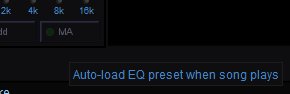
MA (Memory Apply) — When enabled, QUP automatically loads and applies a previously saved EQ preset whenever that song plays. If you've used Add to save a preset for a song, MA ensures that preset is recalled every time without any manual adjustment. Leave MA enabled for a hands-free experience where songs you've already dialed in always sound the way you set them.
Typical Workflow
- A song plays and sounds off — maybe the vocals are muddy or the bass is booming.
- Adjust the EQ sliders until it sounds right.
- Click Add to save the preset for that song.
- Make sure MA is enabled.
- The next time that song comes up in rotation, QUP automatically applies your saved EQ — no need to touch the sliders.