Settings-Kiosk Security
Kiosk Security
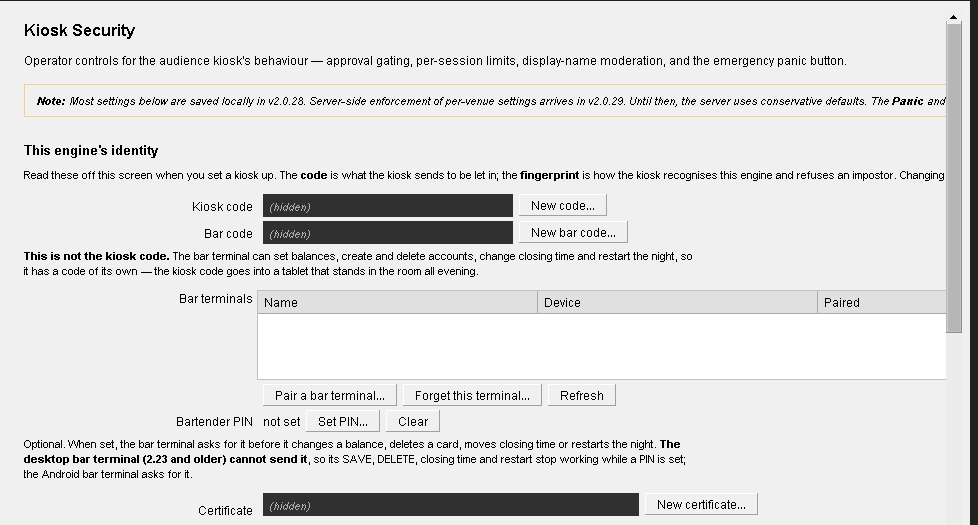
Open it from Preferences → Display → Kiosk Security (main menu → Preferences, or Ctrl+P).
This page decides which kiosks, bar terminals and phones QUP lets in, and what they can do. How the kiosk itself behaves (Party, Patron or Database mode, ID cards, PINs, credits) is on the Kiosk page.
This engine's identity
You read these off this page when you set up a kiosk or a bar terminal.
Kiosk code: the code a kiosk sends to be let in. Desktop kiosks are set up with it, and so is an Android kiosk on an engine older than 2.28.0. New code… replaces it: every kiosk set up with the code stops working until you enter the new one on it. Paired kiosks (see Kiosk devices below) keep working. The old code can't be recovered.
Bar code: the bar terminal's own code. It is deliberately not the kiosk code: a bar terminal can set balances, create and delete accounts, change closing time and restart the night, while the kiosk code goes into a tablet that stands in the room all evening. New bar code… replaces it; a bar terminal set up with the code has to be set up again. Kiosks are not affected.
Certificate: the fingerprint kiosks and bar terminals use to recognise this engine, so they refuse anything pretending to be it. When you set up a device, check that the fingerprint it shows matches this one, every group. New certificate… makes a new one. Every kiosk and terminal then refuses to connect until it is set up again; restart QUP afterwards so the new certificate is used.
Bar terminals
The Android bar terminals paired with this engine: Name, Device, Paired and Last seen.
- Pair a bar terminal… shows a QR code and a one-time code for setting up QUP Bar on an Android phone or tablet. See Bar Terminal.
- Forget this terminal… stops the selected terminal at once. The others keep working.
- Refresh reads the list again.
Bartender PIN (optional): when it is set, the bar terminal asks for it before it changes a balance, deletes a card, moves closing time or restarts the night. Set PIN… asks for the new PIN twice; Clear removes it. The Windows bar terminal 2.23 and older can't send a PIN, so its SAVE, DELETE, closing time and restart stop working while one is set. See The bartender PIN.
Phones
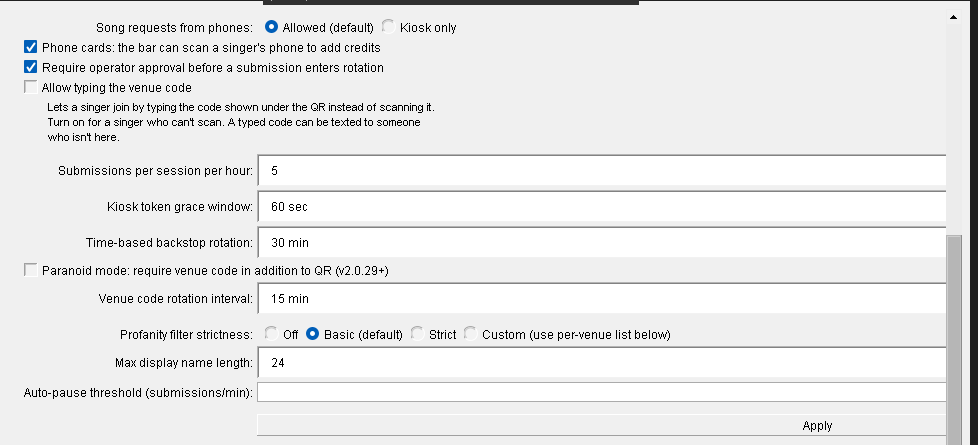
Song requests from phones: Allowed (default) lets singers request songs from their phone (the QUP app or the web singer page). Kiosk only: their phones still show the queue and their QUP card, but songs are requested at the kiosk.
Phone cards: the bar can scan a singer's phone to add credits: a singer signed in on their phone shows a QR code that changes every 30 seconds, and QUP Bar scans it to add credit. Database Mode only. On unless you switch it off.
Allow typing the venue code: lets a singer join by typing the code shown under the QR instead of scanning it. Turn it on for a singer who can't scan. Off by default, because a typed code can be texted to someone who isn't in the venue.
The settings in the middle of the page (operator approval, submission limits, grace window, backstop rotation, profanity strictness, name length, auto-pause, paranoid mode, code rotation) aren't used yet; leave them as they are.
Press Apply to save changes to these three settings.
Kiosk devices and enrolled kiosks
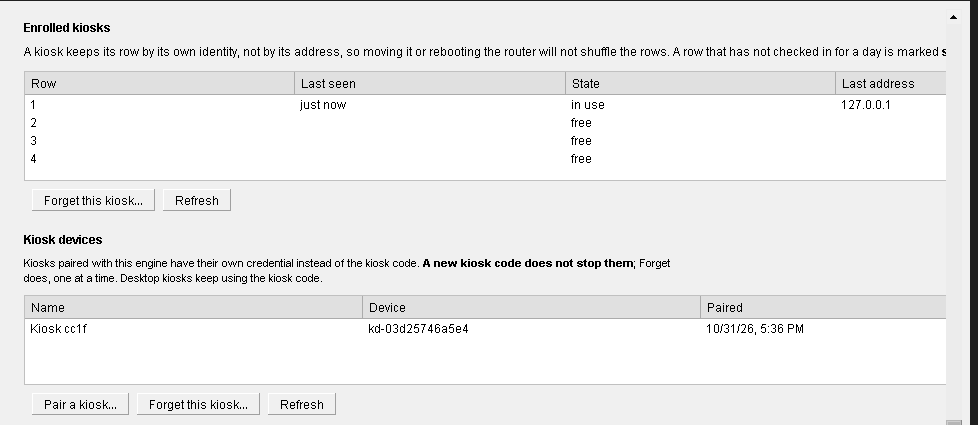
Enrolled kiosks: the kiosks set up with the kiosk code, one row each (Row, Last seen, State, Last address, Kiosk). A kiosk keeps its row by its own identity, not its address, so moving it or restarting the router doesn't shuffle the rows. A row that hasn't checked in for a day is marked stale: that is a prompt to look, nothing more. Only Forget this kiosk… frees a row; that kiosk then has to be set up again.
Kiosk devices: the Android kiosks paired with this engine (Name, Device, Paired, Last seen). Each has its own credential instead of the kiosk code, so a new kiosk code doesn't stop them; Forget does, one at a time.
- Pair a kiosk… shows a QR code and a one-time code for setting up QUP Kiosk on an Android tablet. See QUP Kiosk for Android.
- Forget this kiosk… stops the selected kiosk at once and frees its place; it has to be paired again. Other kiosks are not affected.
- Refresh reads the list again.
Per-venue display-name filter
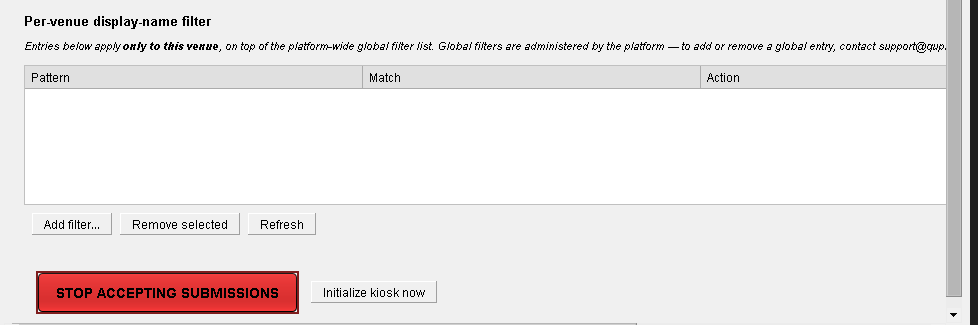
Names singers type on their phones are checked against a filter. The entries here apply to this venue only, on top of the platform-wide list (to change the platform-wide list, contact support@qupkaraoke.com). This needs a registered venue (see Cloud).
Add filter… asks for a Pattern, a Match type (contains, exact or regex) and an Action: reject refuses a name that matches; flag lets it through and marks it. Remove selected deletes the selected entry; Refresh reads the list again.
Stop accepting submissions
STOP ACCEPTING SUBMISSIONS takes the join QR off the singer screen straight away, so new singers can't join from their phones. Click it again (SUBMISSIONS PAUSED — click to resume) to bring the QR back.
Initialize kiosk now sets up this venue's first join code right away instead of waiting up to an hour. It needs a registered venue.
Updated on version 2.35.0, October 31, 2026