Bar-Terminal
QUP Karaoke Bar Terminal
The QUP Karaoke Bar terminal is the bartender's screen. It runs on a Windows PC at the bar and talks to the QUP Karaoke Engine over your venue's network. From it, bar staff can:
- hand out ID cards (fobs) and create the account behind each one
- load credit onto a card, or take it off
- set a card to Active, Inactive or Banned
- read the night's takings at a glance
- move closing time and restart the night
You only need it if your venue sells credit at the bar. It works with the engine in Database Mode with ID cards switched on (see Kiosk).
Before you start
- Engine version. Bar terminal 2.23.0 works with QUP Karaoke Engine 2.22.0 or newer. If you have an older 2.22 bar terminal, update it to 2.23.0.
- Older bar terminals (2.21.x and earlier) do not work with engine 2.22 and later. When you update the engine to 2.22, update the bar terminal at the same time.
- In the engine, open Config → General → Network and make sure Enable HTTPS Server (Mobile & Kiosk) is ticked. The bar terminal talks to the engine over HTTPS only.
- In the engine, open Config → Display → Kiosk, choose Database Mode and tick Use ID Cards. Set the card digit limits to match your fobs.
- Keep the engine's Config → Display → Kiosk Security page handy. You will need two things from it during setup: the Bar code and the Certificate fingerprint.
Installing
Download the Windows installer from the Download page (the QUPKaraokeBar section) and run it. It installs for the current Windows user under %LOCALAPPDATA%\Programs\QUPKaraokeBar, with no administrator prompt, and includes its own Java, so nothing else needs installing.
The terminal keeps its settings beside itself, so it stays set up across updates. Install updates over the top; don't uninstall first.
First-Run Setup
The first time it starts, the terminal asks three questions. Each one has its own dialog, so you can tell which step needs attention.
1. The engine's address
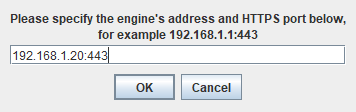
Engine address — type the engine PC's address and its HTTPS port, for example 192.168.1.20:443. If you leave the port off, 443 is used. Use the HTTPS port, not 80.
2. Confirm the engine
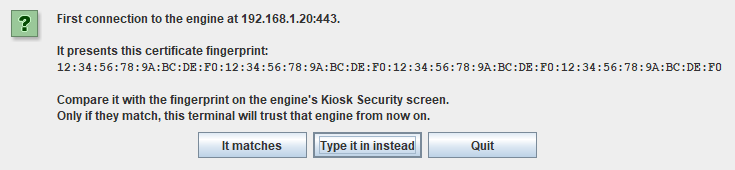
The terminal shows the fingerprint of the certificate the engine presented. Open the engine's Config → Display → Kiosk Security page and compare it with the Certificate fingerprint shown there.
It matches — the fingerprints are the same. The terminal trusts this engine from now on, and only this engine.
Type it in instead — type the fingerprint from the Kiosk Security page yourself (spacing and colons don't matter). This is the stronger option, because you are not relying on what arrived over the network.
Quit — stop here. Use this if the fingerprints differ. Something on the network may be pretending to be the engine.
The terminal never trusts an engine silently. Once a fingerprint is saved, a different certificate later is refused rather than learned again (see Troubleshooting).
3. The bar code
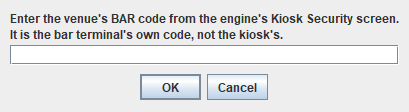
Bar code — type the Bar code from the engine's Kiosk Security page. It is the bar terminal's own code, separate from the Kiosk code that goes into kiosk tablets. The bar code can set balances, delete accounts and close the night, so it should never be typed into a kiosk.
If the code is wrong, the terminal says so and asks again:
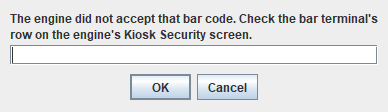
If you replace the bar code on the engine (New bar code… on the Kiosk Security page), the terminal stops working until you enter the new one.
After the third step the main screen opens. Next time, the terminal starts straight into it.
The Main Screen
The takings strip (top)
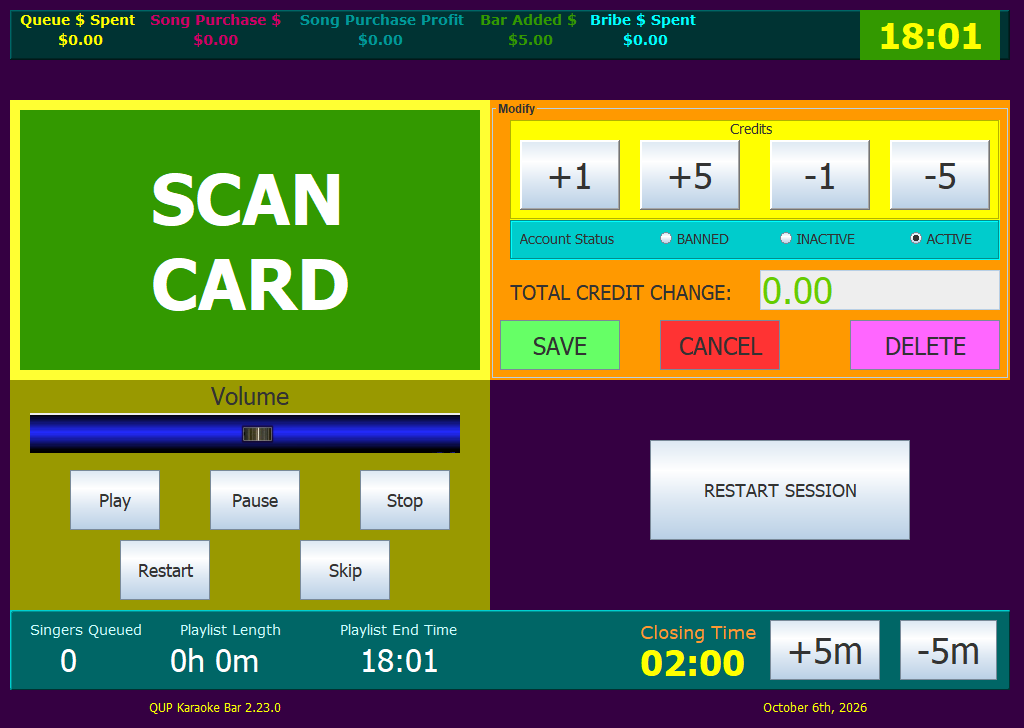
Queue $ Spent — credit singers have spent on queuing songs tonight.
Song Purchase $ — credit spent buying songs.
Song Purchase Profit — the venue's profit on those purchases.
Bar Added $ — credit the bar has loaded onto cards tonight (taking credit off counts against it).
Bribe $ Spent — credit spent on bribes to move up the rotation.
The figures refresh from the engine every 15 seconds.
The clock (green, top right) — the current time, updated every minute. It is only a clock: pressing it does nothing. (Before bar terminal 2.23.0 it was also a restart button.)
Scan card
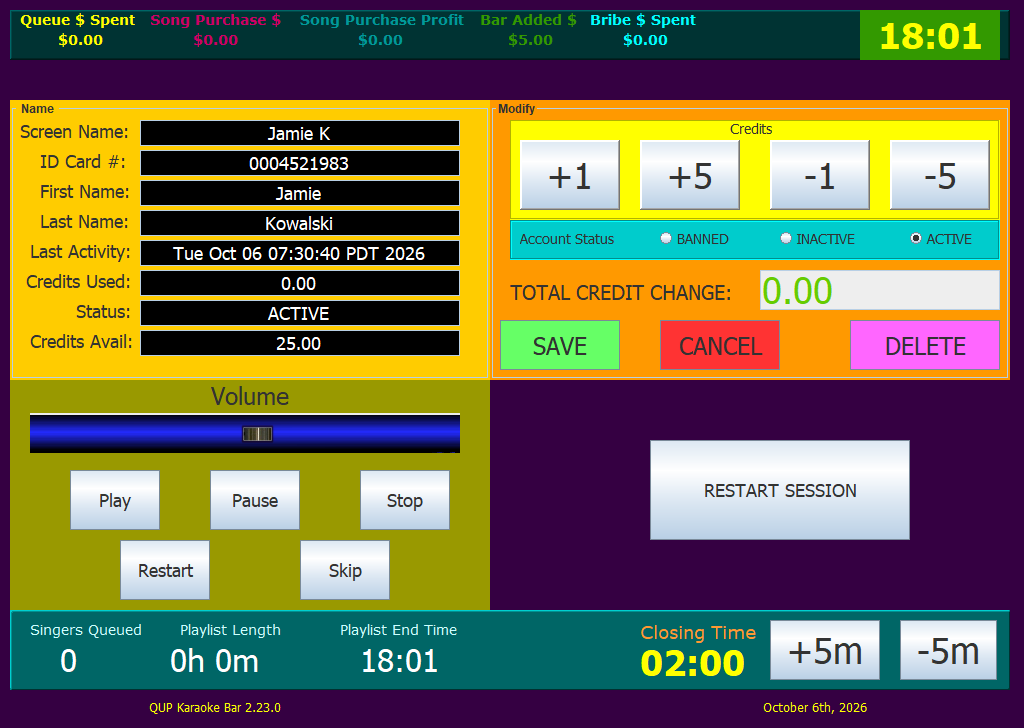
SCAN CARD — with this showing, swipe a card on the USB card reader. The terminal looks the card up:
- A known card shows that singer's account in the Name panel: Screen Name (their karaoke name), ID Card #, First Name and Last Name (when the singer gave them), Last Activity (when they last queued a song), Status, and Credits Avail (their balance, in dollars). The account status buttons on the right are set to match. (Credits Used is not filled in by this version.) The names in the screenshot are made up.
- An unknown card — the terminal asks "ID Not in Database - Init this as a new ID?". Answer Yes to create an account on that card. A new card starts Inactive with no credit; the singer chooses their name and PIN at the kiosk.
- A card that doesn't fit your card format (too short, too long, or not allowed by your digit limits) is refused with "ID Card format is not allowed by server!".
Credits
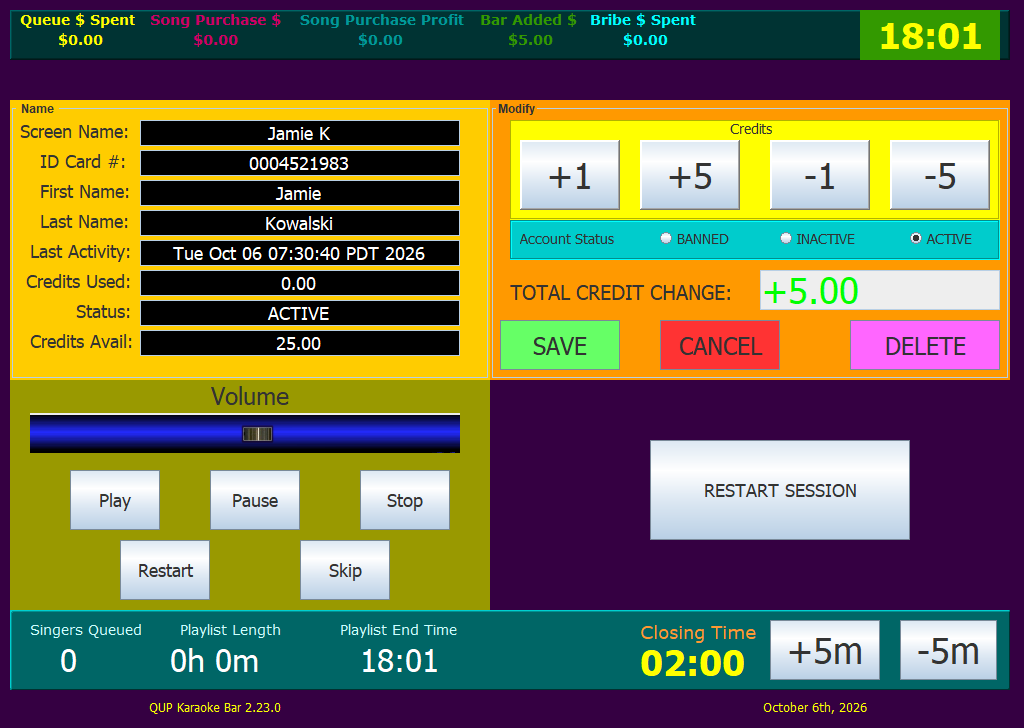
+1 / +5 — add $1 or $5 to the change you are about to save.
−1 / −5 — take $1 or $5 off it.
TOTAL CREDIT CHANGE — the change you have built up: green for adding, red for taking off. Nothing changes on the card until you press SAVE.
Account status
BANNED / INACTIVE / ACTIVE — the account's status, saved along with the credit when you press SAVE. It is the same status the KJ sees in the engine's singer list. A card created at the bar always starts Inactive, and saving from the bar keeps it Inactive until it has been scanned in again.
Save, Cancel, Delete
SAVE — applies the credit change and the status to the card. On success the panel shows ID CARD SUCCESSFULLY UPDATED in green.
CANCEL — throws the changes away and goes back to SCAN CARD.
DELETE — deletes the account on this card. It asks twice ("This CANNOT be undone!"). The singer's account and credit on that card are gone.
Balance limits
The engine refuses two kinds of balance:
- More than $500 on one card. This catches a slipped decimal point before it becomes a balance nobody can account for.
- Less than $0. You can't take off more credit than the card holds.
When a save is refused for either reason, the red banner says why, for example NOT UPDATED: THAT IS MORE THAN $500…. Nothing changes on the card. (Bar terminals before 2.22.0 stored either without complaint.)
Player controls
Volume, Play, Pause, Stop, Restart (the current song), Skip — remote control of the engine's player, for when the KJ is away from the booth.
These buttons only work when the engine has Enable OSC Messages ticked in Config → General → Network. If it is off, they do nothing.
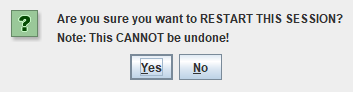
RESTART SESSION (large button) — the one way to restart the night. It asks twice, then ends the session and zeroes the evening's takings. Answer No to either question and nothing happens.
Closing time and the queue (bottom)
Singers Queued — how many singers are in the rotation.
Playlist Length — how long the queued songs will take to play, in hours and minutes.
Playlist End Time — the clock time the queue will finish if nothing else is added. Past midnight it keeps counting, so a queue that ends at half past midnight reads 24:30.
Closing Time — the venue's closing time, the same one the KJ sets as Closing Time in the engine's Config → General → Karaoke.
+5m / −5m — move closing time 5 minutes later or earlier. It wraps round midnight correctly: +5 from 23:58 is 00:03, and −5 from 00:02 is 23:57.
The bottom line shows the terminal's version and build date.
Troubleshooting
"The engine at … has no bar door. This terminal needs QUP engine 2.22.0 or newer." — the engine is older than the terminal. Update the engine, or enter a different address if you pointed it at the wrong machine.
Engine 2.21 or older — every bar call fails with the message above. Update the engine and the bar terminal together.
"This is not the engine this terminal was set up for."

The engine presented a different certificate from the one the terminal was set up with. The dialog shows both fingerprints:
- The venue replaced the engine's certificate, for example after New certificate… on Kiosk Security, or after moving the engine to a new PC or data folder: choose Forget the saved engine and set up again, then confirm the new fingerprint against the Kiosk Security page.
- Nothing changed on the engine: don't accept it. Something on the network may be pretending to be the engine. Choose Quit and look into it.
Change engine address — use this if the terminal is pointed at the wrong machine.
"The engine did not accept that bar code." — the bar code was mistyped, or someone pressed New bar code… on the engine. Copy it again from Kiosk Security.
"The engine has no bar code it can read yet." — open the engine's Kiosk Security page so it creates one, then enter it.
The address dialog keeps coming back — the terminal can't reach the engine. Check that the engine is running, that the address and HTTPS port are right, and that Enable HTTPS Server (Mobile & Kiosk) is ticked.
"ID Card format is not allowed by server!" — the card doesn't fit the digit limits in the engine's Kiosk settings, or ID cards are switched off there.
The player buttons do nothing — tick Enable OSC Messages in the engine's Config → General → Network.
Setting the terminal up again from scratch — close it, delete config.properties and engine-pin.properties from the app\data\config folder inside the install folder, and start it again.