Kiosk-Android
QUP Kiosk for Android
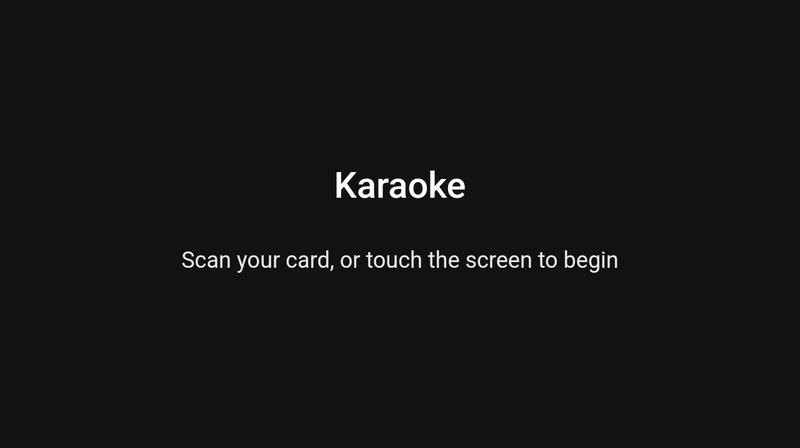
QUP Kiosk turns an Android tablet into your venue's singer kiosk. Singers walk up, scan their card (or type their karaoke name), and from there they can:
- search the venue's songs and queue one, with their own key and tempo
- see and change their songs in the queue: move them up or down, swap a song, take one out
- keep favourites and see the songs they've sung
- sign up with a new card, choose a PIN and take a photo for the KJ's screen
- see their credit, and, if the venue allows it, pay to jump ahead in the queue
- buy a song the venue doesn't have yet, through SongShop, and sing it
It does what the Windows kiosk does, on a tablet, and it locks itself in so singers can't wander off into the rest of the tablet.
Before you start
- Engine version. QUP Kiosk for Android needs QUP Karaoke Engine 2.28.0 or newer for everything on this page. On 2.27.x it still works with two differences:
- Pairing: a 2.27 engine has no Pair a kiosk… button. Type the venue's Kiosk code instead (see Pairing below).
- Buying songs: 2.27 can't search the song store from a tablet, so the Buy it for the venue list never appears.
- The engine's network. In the engine, open Preferences (Ctrl+P) → General → Network and make sure Enable HTTPS Server (Mobile & Kiosk) is ticked. The kiosk talks to the engine over HTTPS only.
- Kiosk settings. Kiosk behaviour (Party, Patron or Database mode, ID cards, PINs, photos, credits, the inactivity timeout) comes from the engine's Preferences → Display → Kiosk page, exactly as for the Windows kiosk (see Kiosk). Paying to jump ahead comes from Preferences → Misc → Bribe.
- The tablet. Android 8 or newer. A 10-inch tablet in landscape is what it's designed for. It needs a camera (front or back) for the pairing QR and singers' photos. A card reader that acts as a keyboard (USB or Bluetooth) works exactly as on the Windows kiosk.
- Locking the tablet (recommended) needs a tablet with no Google or other accounts on it: a new tablet, or one reset to factory settings. Plan that before you sign in to anything on it.
Installing and locking
There are two ways to run it:
- Locked (recommended for a tablet out in the venue). QUP Kiosk becomes the tablet's Device Owner. Singers can't get to Home, Recents, notifications or the power menu. The tablet starts straight into the kiosk after a power cut, and the screen stays on while it's plugged in.
- Pinned. Without Device Owner, the kiosk uses Android's screen pinning. That keeps a casual singer in, but anyone who knows Android's unpin gesture can leave. It's fine for a tablet the KJ can see.
Locked: making QUP Kiosk the Device Owner
You do this once per tablet, with a computer and a USB cable. Android only allows it on a tablet with no accounts.
- Start from a fresh tablet. Factory-reset it if it's been used. Go through Android's setup, but skip signing in to a Google account, and don't add any other account.
- Turn on USB debugging. Go to Settings → About tablet and tap Build number seven times. Then Settings → System → Developer options → USB debugging: on.
- Install QUP Kiosk. Download the APK from the Download page, then either:
- copy it to the tablet and open it (Android asks once to allow installs from your browser or file manager), or
- from the computer, run
adb install QUPKiosk-Android-1.0.1.apk.
Make it the Device Owner. With the tablet connected, run:
adb shell dpm set-device-owner com.qupkaraoke.kiosk/com.qupkaraoke.singer.KioskAdminReceiverIt should answer
Success: Device owner set to package com.qupkaraoke.kiosk…. If it says the device already has accounts, go back to step 1.- Turn USB debugging off again, unplug, and open QUP Kiosk. Then do Pairing and The staff PIN below, and finally Lock this tablet from the staff screen.
Pinned (no Device Owner)
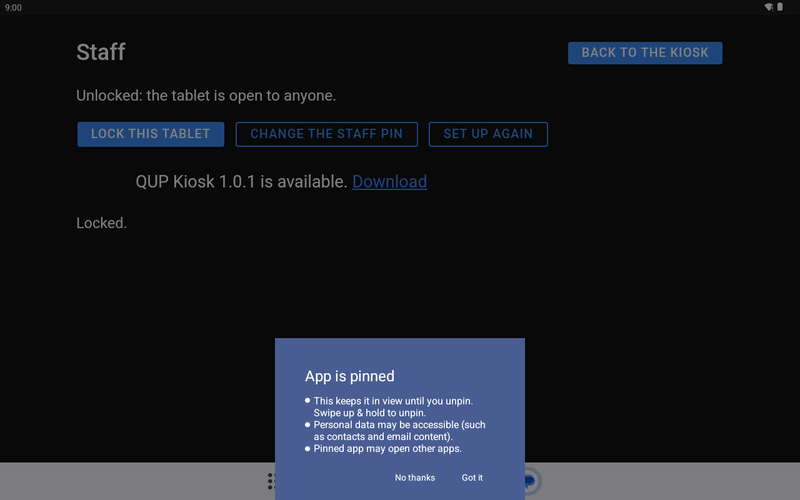
Install the APK (step 3 above), open QUP Kiosk, pair it, choose the staff PIN, then Lock this tablet from the staff screen. Android asks once whether to pin the app; tap Got it.
Pairing with the engine
The first time it starts, the kiosk asks which engine to use.
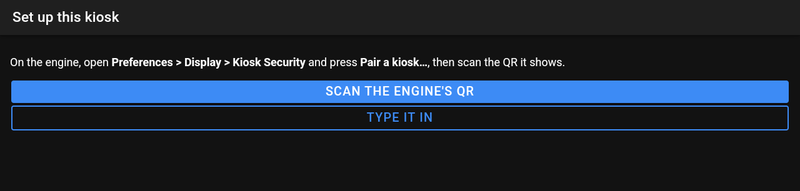
Scan the engine's QR (engine 2.28.0 and newer):
- In the engine, open Preferences → Display → Kiosk Security (see Kiosk Security) and press Pair a kiosk….
- On the tablet, press Scan the engine's QR and point the camera at the code.
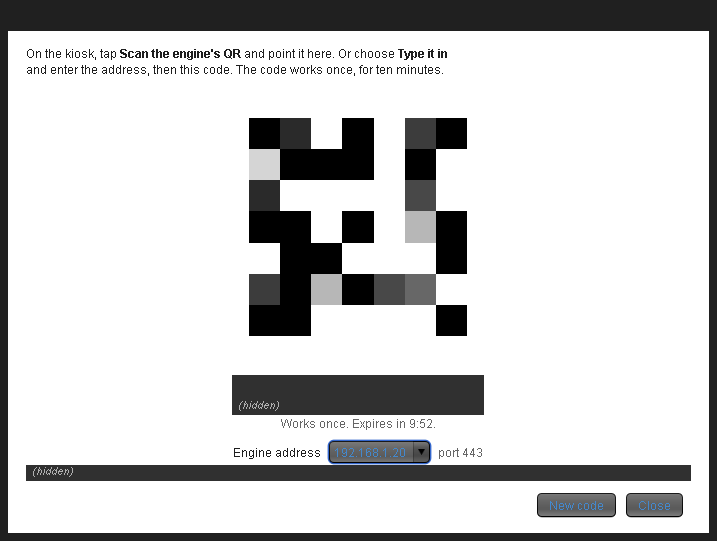
The QR carries the engine's address, port and certificate, plus a one-time pairing code that lasts 10 minutes. The tablet gets a credential of its own, so you can later stop this one tablet without touching the others.
Type it in works without the camera, and is how a 2.27 engine is paired:
- Engine address. The engine PC's address and HTTPS port, for example
192.168.1.20:443(443 if you leave the port off). Confirm the engine. Compare the fingerprint the tablet shows with Certificate on the engine's Kiosk Security page. Press It matches only if every group is the same, or Type it in instead to enter it yourself.
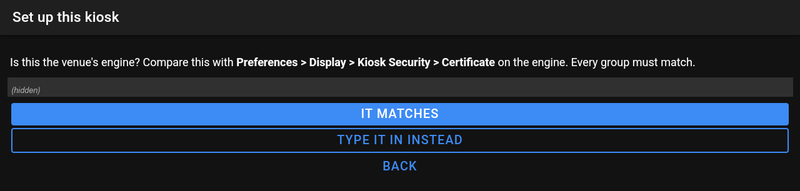
Code. The pairing code from the engine's Pair a kiosk window (like
ABCD-EFGH-JKMN) or, on any engine, the venue's 32-character Kiosk code from the Kiosk Security page.
The kiosk never trusts an engine silently: a different certificate later is refused, not learned again.
The staff PIN
Right after pairing, the kiosk asks you to choose a 6-digit staff PIN, twice. Staff use it to reach the staff screen; singers never see it.
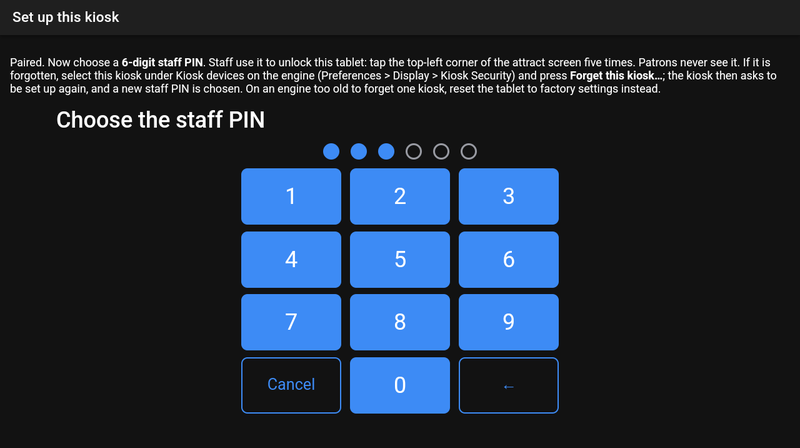
To open the staff screen, tap the top-left corner of the attract screen ("Scan your card, or touch the screen to begin") five times quickly, then enter the staff PIN. This works even when the kiosk can't reach the engine. After five wrong PINs the kiosk waits a minute before it will try again.
On the staff screen:
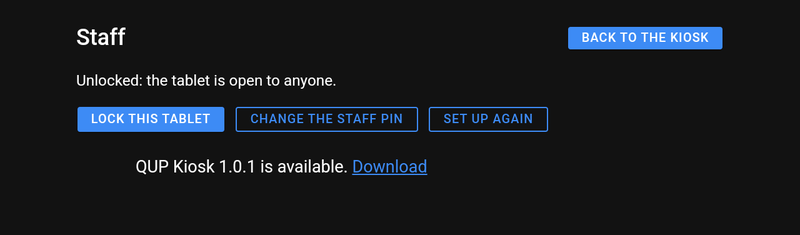
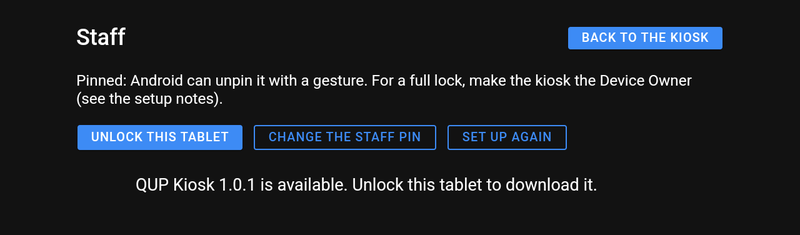
- Lock this tablet / Unlock this tablet. Locking is remembered: after a restart the kiosk locks itself again.
- Change the staff PIN.
- Set up again. Forgets this engine and starts pairing from the beginning.
- Release Device Owner (locked tablets only). Gives the tablet back to normal Android use, for example before you uninstall QUP Kiosk or use the tablet for something else. Making it the Device Owner again needs the steps above, on a reset tablet.
- Back to the kiosk.
The staff screen also tells you when a newer QUP Kiosk is available (see Updating).
If the staff PIN is forgotten
- Engine 2.28.0 and newer: in the engine, open Preferences → Display → Kiosk Security, select the tablet in the Kiosk devices list (paired kiosks; Enrolled kiosks is the list for kiosks set up with the kiosk code) and press Forget this kiosk… there. The tablet shows This kiosk needs setting up again; press Set up again, pair it, and choose a new staff PIN. The tablet stays locked the whole time.
- Engine 2.27.x (paired with the kiosk code): reset the tablet to factory settings and set it up again from the start.
What singers see
The kiosk waits on its attract screen: Scan your card, or touch the screen to begin (just Touch the screen to begin when the venue doesn't use ID cards).
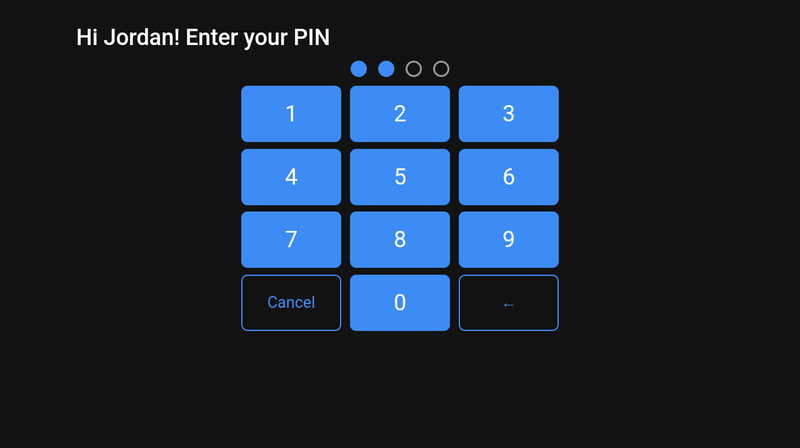
- Sign in. A singer scans their card and enters their PIN (Hi Jordan! Enter your PIN). Without a card, touching the screen asks for their karaoke name.
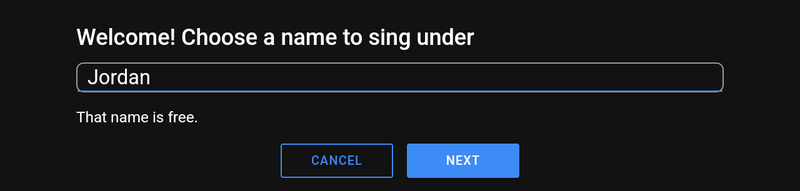
A new card (when Auto-authorize new ID cards at kiosk is on, see Kiosk) starts a new account: the kiosk asks for a name to sing under, says whether it's free, then asks them to choose a 4-digit PIN and enter it again.
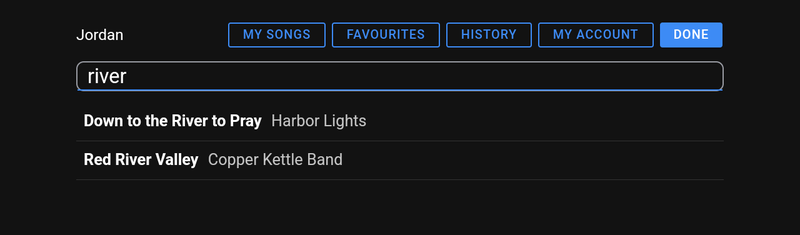
Find a song. They type in Search by song or artist and the matching songs appear as they type.
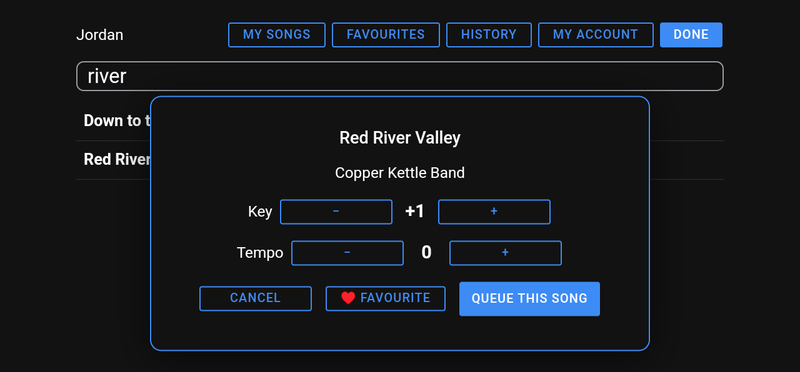
Queue it. Tapping a song opens it: they can change the Key and Tempo with − and +, save it with ♥ Favourite, and press Queue this song.
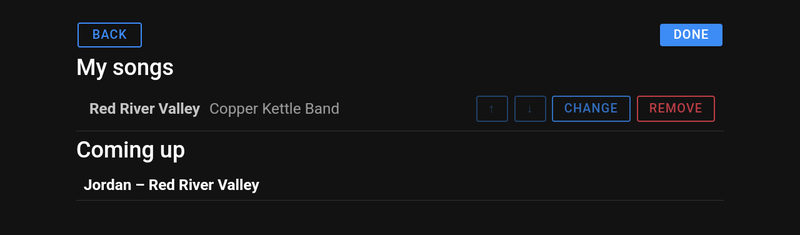
Their songs. My songs lists their songs in the queue: ↑ and ↓ move one up or down, Change swaps it for another song and Remove takes it out. Coming up shows the queue.
Along the top they also have Favourites, History (the songs they've sung) and My account (their name, email and phone, and Change my PIN). Done ends their turn and the kiosk goes back to the attract screen; it also does that by itself after the venue's inactivity timeout. The names in the screenshots are made up.
At a venue in Party Mode (see Kiosk) the kiosk asks only for a name: no card and no PIN. Singers get My songs and Done, and the same name is the same singer.
Updating
When a newer version is published, the staff screen says QUP Kiosk 1.x.x is available. Singers never see this.
Open the staff screen and press Unlock this tablet. While the tablet is locked, the kiosk only tells you to unlock first.
Press Download. The browser downloads the APK; open it and install it over the top. Android checks it is signed by QUP Karaoke.
- Open QUP Kiosk. It keeps its pairing, staff PIN and settings. Then Lock this tablet again.
Troubleshooting
"This kiosk needs setting up again." The engine no longer recognises this tablet: someone pressed Forget this kiosk… for it, the engine's data was replaced, or the engine now presents a different certificate. (Updating a Mac engine to 2.28.0 does this once: Mac engines get their own certificate in that release.) Open the staff screen (top-left corner five times, then the staff PIN), press Set up again, pair it, and confirm the fingerprint against the Kiosk Security page. There is deliberately no button for this on the attract screen, so a patron can't re-pair the tablet. If nothing changed on the engine, something on the network may be pretending to be it.
"Can't reach the KJ's system." The tablet can't talk to the engine. Check the tablet's Wi-Fi is on the venue network, the engine is running, and Enable HTTPS Server is ticked. The kiosk keeps trying by itself.
"That isn't the engine whose fingerprint you confirmed" while pairing. The engine answered with a different certificate from the one you just confirmed. Start again from the address, and compare the fingerprint with the Kiosk Security page carefully.
adb shell dpm set-device-owner fails: "there are already accounts on the device". Android only allows a Device Owner on a tablet with no accounts. Remove the accounts (Settings → Accounts) or factory-reset, and don't sign in during setup.
A singer's photo doesn't work. The first photo asks Android for the camera. If someone pressed Don't allow, allow the camera for QUP Kiosk in Android's Settings → Apps (you'll need to unlock the tablet first).
Removing QUP Kiosk. On a locked tablet, use Release Device Owner on the staff screen first. Android won't uninstall a Device Owner. Then uninstall it as normal.
Updated on version 2.35.0, October 31, 2026