Main-Filler-Media-Library
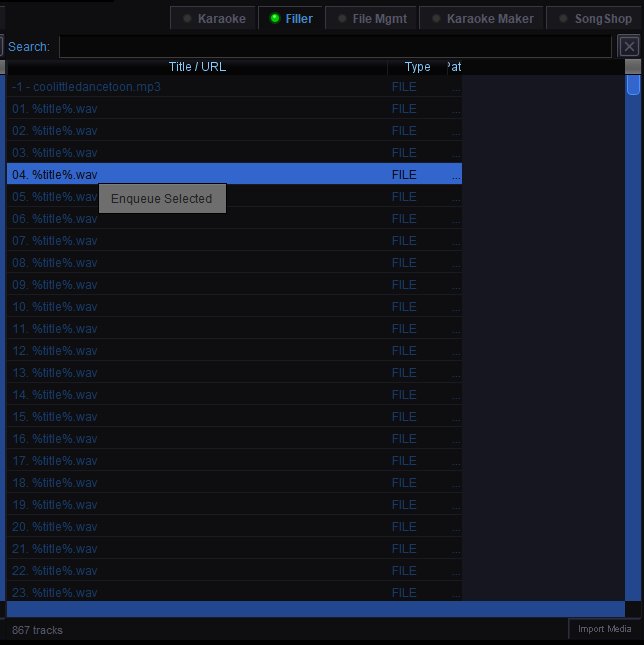
Filler Media Library
The Filler tab in the Song Browser lists all tracks from folders marked as filler in the Media configuration panel. This is where you browse and manage your between-song background music.
Library Columns
Title / URL — The track title or filename. Tracks showing "%title%" have not had their metadata parsed — the actual filename is used.
Type — The source type (e.g. FILE for local files).
Path — The file path to the track on disk.
Searching
Type in the search bar to filter filler tracks by title. Click the X button to clear the search.
Adding Filler to the Queue
Right-click a track and select Enqueue Selected to add it to the filler playlist. You can select multiple tracks before right-clicking to enqueue them all at once. Enqueued tracks are added to the filler queue and will play in order between karaoke performances.
Adding mutiple Filler to the Queue
You can select multiple tracks using Ctrl+Click to add individual tracks to your selection, or Shift+Click to select a range of tracks.
Track Count
The bottom of the panel shows the total number of filler tracks available in your library.
Import Media
Click Import Media in the bottom right to import additional filler music files into QUP's library.