Main-File-Management
File Management
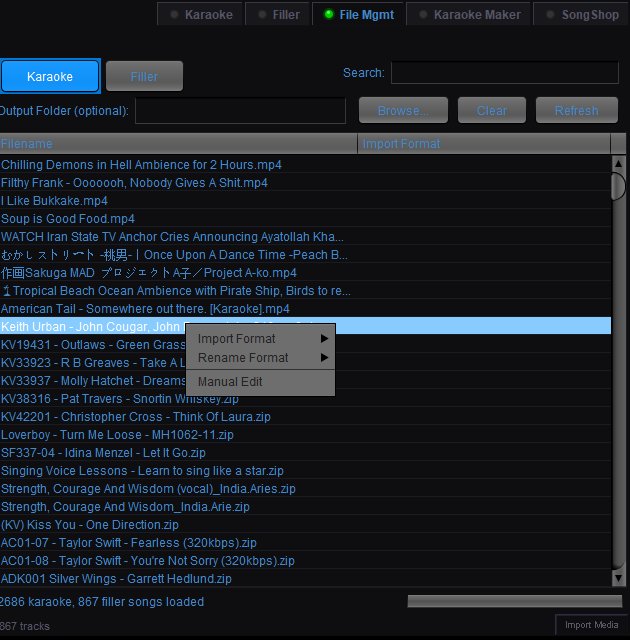
The File Mgmt tab in the Song Browser provides tools for renaming, reformatting, and organizing your karaoke and filler media files in bulk. Use this when your files don't match QUP's expected naming format or when you need to clean up filenames across your library.
Library Toggle
The Karaoke and Filler buttons at the top left switch between viewing your karaoke media files and your filler media files.
Toolbar
Output Folder (optional) — Set an output folder if you want renamed files to be saved to a different location instead of renaming in place. Click Browse... to select a folder.
Search — Filter the file list by filename.
Clear — Clears the search filter.
Refresh — Reloads the file list from disk.
File List Columns
Filename — The current filename of each media file.
Import Format — Shows the naming format that will be applied when importing.
Selecting Files
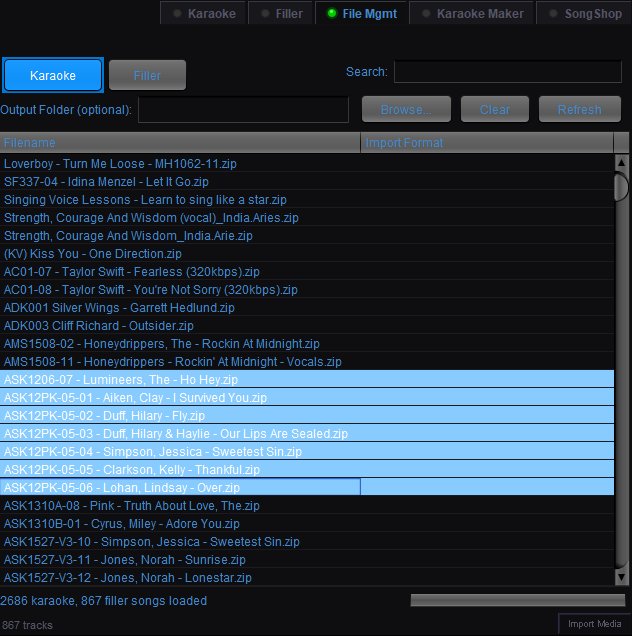
Click a file to select it. Use Shift+Click to select a range of consecutive files. Use Ctrl+Click to add or remove individual files from your selection. Selected files are highlighted in blue and any operation you perform will apply to all selected files at once.
Right-Click Context Menu
Right-click on selected files to access bulk operations:
Import Format — Tells QUP how to parse the selected filenames into the database without renaming them on disk. Select the format that matches how the files are currently named:
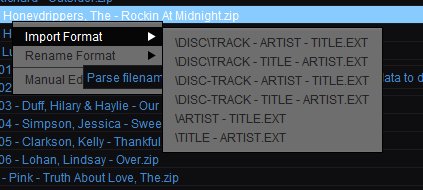
\DISC\TRACK - ARTIST - TITLE.EXT\DISC\TRACK - TITLE - ARTIST.EXT\DISC-TRACK - ARTIST - TITLE.EXT\DISC-TRACK - TITLE - ARTIST.EXT\ARTIST - TITLE.EXT\TITLE - ARTIST.EXT
This is useful when you have files in a different format than your global Database setting — you can import them correctly without changing the global format or renaming the files.
Parse filename — Parses the selected files using the chosen import format and updates their database entries.
Rename Format — Physically renames the selected files on disk to match your chosen naming convention. The same six format options are available:
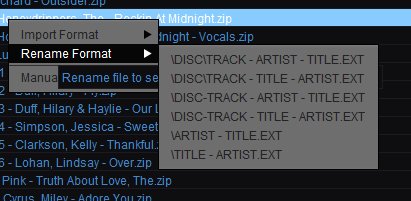
\DISC\TRACK - ARTIST - TITLE.EXT\DISC\TRACK - TITLE - ARTIST.EXT\DISC-TRACK - ARTIST - TITLE.EXT\DISC-TRACK - TITLE - ARTIST.EXT\ARTIST - TITLE.EXT\TITLE - ARTIST.EXT
Rename file to set format — Renames the selected files on disk to match the format currently set in the Database configuration panel.
Manual Edit — Opens the Manual Edit dialog for hands-on filename editing.
Manual Edit
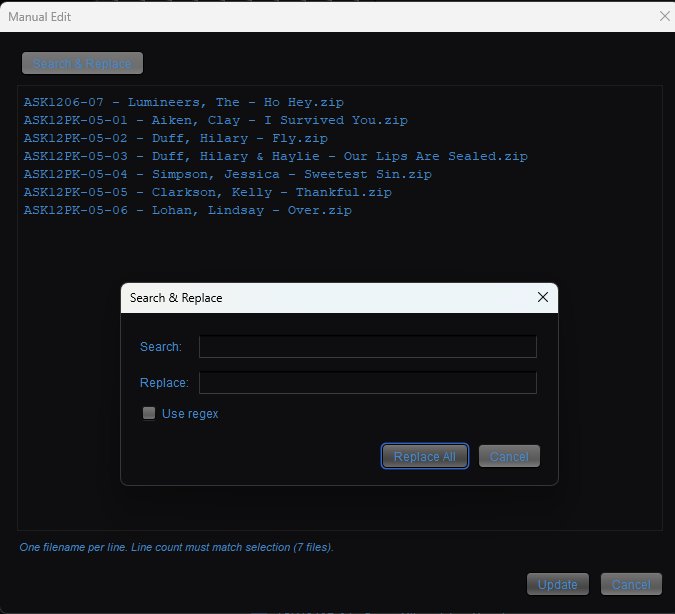
The Manual Edit dialog displays every selected filename as editable text — one filename per line. You can edit filenames directly in the text area. The line count must match the number of selected files.
Search & Replace — Click the Search & Replace button to open a find-and-replace dialog:
- Search — The text or pattern to find in the filenames.
- Replace — The replacement text.
- Use regex — Enable regular expression matching for advanced pattern-based renaming. For example, you could use regex to strip extra characters, reorder artist and title, or remove disc prefixes across hundreds of files at once.
- Replace All — Applies the replacement to all filenames in the editor.
After making your changes, click Update to rename the files on disk, or Cancel to discard changes.
Bottom Bar
Shows the total count of karaoke and filler songs currently loaded in the library.