Settings-Media
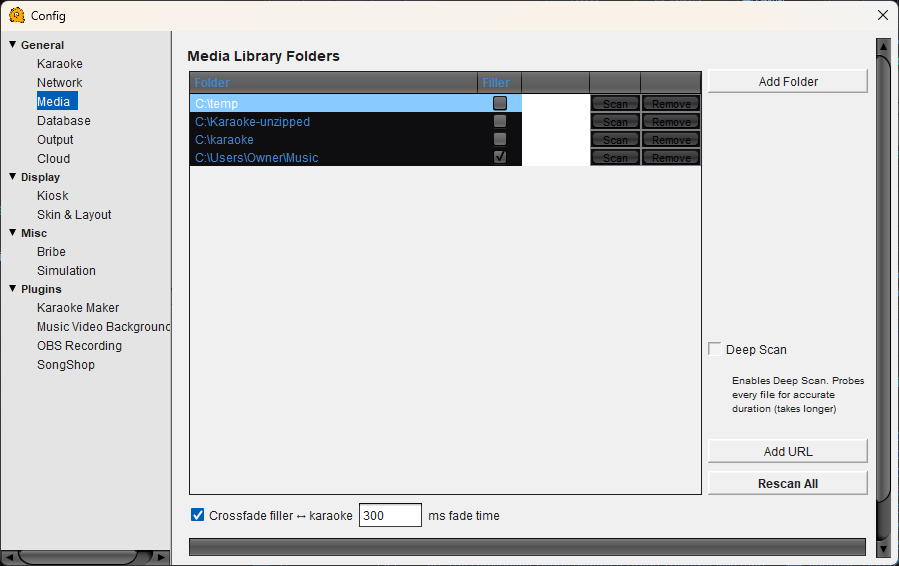
Media Configuration
Media Library Folders
This is where you tell QUP where your karaoke files are stored. QUP scans these folders for playable media (MP3+CDG, MP4, MKV, ZIP) and builds its song database from what it finds.
Add Folder — Browse to a folder on your computer and add it to the library. You can add as many folders as you need — for example, separate folders for different karaoke disc sets.
Filler — Check this box to mark a folder as a filler music source. Songs from filler folders play automatically between karaoke performances to keep the room from going silent. Filler tracks are not shown in the singer song browser.
Scan — Scans an individual folder and adds any new or changed files to the database.
Remove — Removes the folder from QUP's library. This does not delete any files from your computer — it just tells QUP to stop looking in that folder.
Deep Scan — When enabled, QUP probes every file to determine its exact duration, and if the file is corrupted. This produces more accurate time estimates and trouble free playback in the playlist but takes significantly longer to complete. Leave unchecked for faster scanning unless you need precise song lengths.
Add URL — Add a remote URL as a media source. Useful for streaming or network-hosted karaoke libraries.
Rescan All — Re-scans every folder in the list and rebuilds the library. Use this if you've added, removed, or renamed a large number of files.
Crossfade
Crossfade filler ↔ karaoke — When enabled, QUP smoothly fades between filler music and karaoke tracks instead of abruptly cutting. The fade time (in milliseconds) controls how long the transition takes. Default is 300ms. Shorter values feel snappier; longer values give a smoother DJ-style blend.