Kiosk for Windows and Linux
QUP Kiosk for Windows and Linux
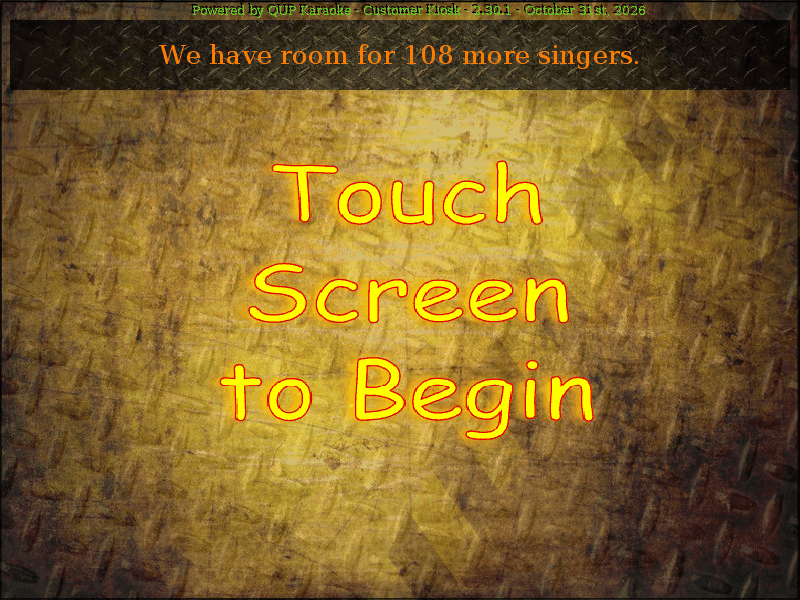
QUP Kiosk turns a touchscreen PC into your venue's singer kiosk. It runs full screen next to the stage or at the bar. Singers walk up, scan their card (or type their karaoke name), and from there they can:
- search or browse the venue's songs and queue one, with their own tempo and key
- see their songs in the queue: move them up or down, swap one for another, take one out
- keep favourites and see the songs they've sung
- sign up as a new singer with a PIN, and a photo for the KJ's screen if the venue uses them
- see their credit and, if the venue allows it, pay to jump ahead in the queue
- buy a song the venue doesn't have yet, through SongShop, and sing it
There's also a kiosk for Android tablets. Both do the same job, and both take their settings from the same place in the engine.
Before you start
- Engine version. QUP Kiosk 2.30.1 needs QUP Karaoke Engine 2.25.0 or newer.
- The engine's network. In the engine, open Preferences (Ctrl+P) → General → Network and make sure Enable HTTPS Server (Mobile & Kiosk) is ticked. Note the HTTPS port next to it if it isn't 443. The kiosk talks to the engine over HTTPS only.
- The kiosk code. Each venue has one kiosk code, a 32-character code shown in the engine under Preferences → Display → Kiosk Security (see Kiosk Security). You type it into the kiosk once.
- Kiosk settings. Party, Patron or Database mode, ID cards, PINs, photos, credits and the inactivity timeout all come from the engine's Preferences → Display → Kiosk page (see Kiosk). Paying to jump ahead comes from Preferences → Misc → Bribe. Change them on the engine, not on the kiosk.
- The kiosk PC. 64-bit Windows, or 64-bit Linux (Ubuntu 22.04 or newer, Debian 12 or newer). A touchscreen is what it's designed for. Optional extras:
- a card reader that acts as a keyboard (USB), for singers' ID cards;
- a webcam, for singers' photos;
- a bill validator on a serial port, for paying in cash.
Installing
The Download page has three versions. They're the same kiosk; pick the one that suits the PC.
Windows: the installer (recommended)
Windows installer (no Java needed) has everything the kiosk needs built in.
- Run
QUPKiosk-Setup-2.30.1.exe. It installs for the Windows user you're signed in as, so it doesn't ask for an administrator. - On the last page, Start automatically when this computer turns on is ticked. Leave it ticked for a kiosk: the kiosk then starts whenever this Windows user signs in, for example after a power cut. (Set Windows to sign this user in automatically, so it comes all the way back without a keyboard.)
- Start the kiosk now starts it straight away. Next time, start it from the Start menu (QUP Karaoke → QUP Karaoke Kiosk) or the desktop shortcut.
It installs to %LOCALAPPDATA%\Programs\QUPKaraokeKiosk, and keeps its settings, singers' photos and logs inside that folder.
Linux
Linux (no Java needed) is a 64-bit .tar.gz with everything built in.
Extract it into the home folder of the user the kiosk runs as. Don't put it in
/optor anywhere owned by root: the kiosk keeps its settings inside its own folder, so it must be able to write there.tar -xzf QUPKiosk-2.30.1-linux-x64.tar.gz -C ~Start it:
~/QUPKaraokeKiosk/bin/QUPKaraokeKioskOptional: add it to the applications menu and start it whenever this user logs in:
~/QUPKaraokeKiosk/install-desktop-entry.sh --autostart(
--removetakes both away again.)If you use a bill validator, let this user open serial ports, then log out and back in:
sudo usermod -aG dialout $USER
README.txt in the download has the same steps.
The zip
Zip is the kiosk without Java built in, for a Windows PC that already has Java 21 or newer (64-bit). Unzip it into a folder of its own and start it with run_kiosk.bat.
Connecting to the engine
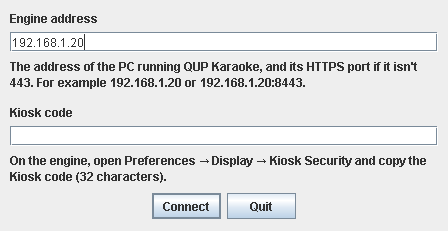
The first time the kiosk starts, it asks which engine to use:
- Engine address. The address of the PC running QUP Karaoke, for example
192.168.1.20. Add the HTTPS port if it isn't 443, for example192.168.1.20:8443. - Kiosk code. In the engine, open Preferences → Display → Kiosk Security and copy the Kiosk code. Paste or type it in; spaces and dashes don't matter.
- Press Connect.
The kiosk remembers both, so it connects by itself from then on. If the engine can't be reached, or doesn't accept the code, the same window comes back and says why. Fix it and press Connect again.
The engine's certificate. On its first connection the kiosk remembers the engine's certificate, and from then on it only talks to that engine. If the engine later shows a different certificate, the kiosk says This is not the venue's engine. Press Check the engine's new fingerprint, compare what the kiosk shows with Certificate on the engine's Kiosk Security page, and press It matches only if every character is the same. If they don't match, something on the network is pretending to be the engine.
The two startup questions
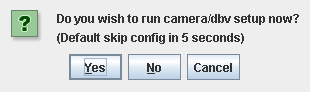
Every time it starts, after connecting, the kiosk asks two questions. Each answers itself after 5 seconds, so a kiosk that starts on its own carries straight on:
- Choose setup mode: "Do you wish to run camera/dbv setup now?" Yes opens the camera and bill-validator setup (below). On its own it skips setup.
- Choose screen mode: "Do you wish to run in debug mode?" Yes runs the kiosk in a window, which is handy while you set it up. On its own it runs full screen, which is what you want for singers.
Camera and bill validator
Answer Yes to Choose setup mode. The QUP Kiosk Setup window opens:
- Camera Device and Resolution. Press PREVIEW to check the picture. Singers' photos are cropped to the resolution you choose.
- DBV Serial Port. The port the bill validator is on.
Press SAVE. The kiosk closes, so start it again: it uses the new settings from then on. Photos also need Use Photos ticked on the engine (Preferences → Display → Kiosk), and cash needs Enable DBV ticked for this kiosk in that page's Registered Kiosks list.
What singers do
Everything here follows the engine's kiosk settings, so a singer only sees what your venue uses. A number at the top right counts down the seconds left: if nobody touches the screen, the kiosk says YOUR TIME HAS RUN OUT! and goes back to the start, so the next singer never finds someone else signed in. START OVER and EXIT go back to the start straight away.
Signing in
The start screen says Touch Screen to Begin. With ID cards turned on, it says Scan Keyfob to Begin instead, and singers scan their card on the reader.
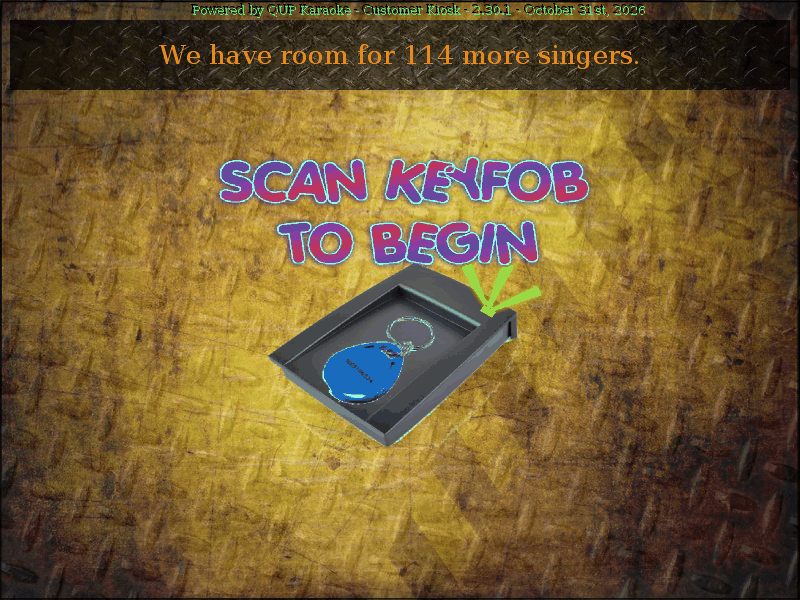
Without a card, a singer types their screen name on the on-screen keyboard and presses the green arrow, then enters their 4-digit PIN and presses Next (when the venue uses PINs).
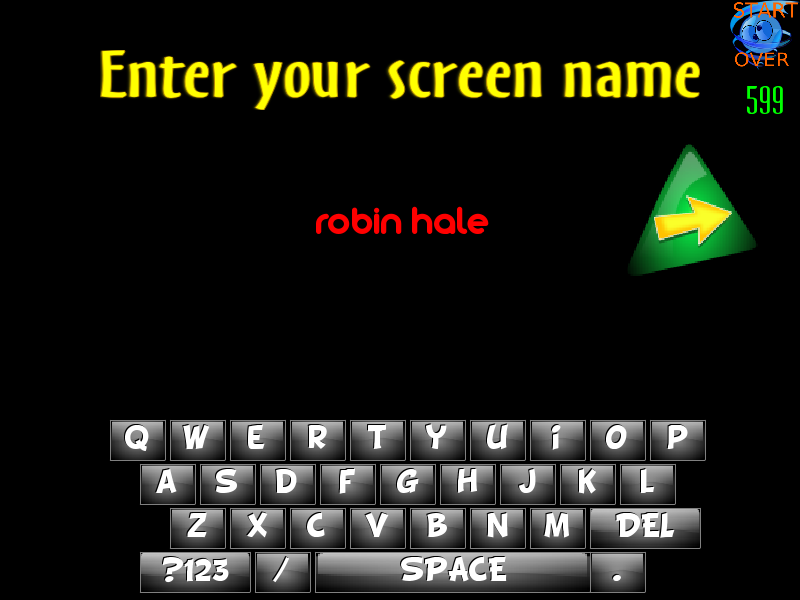
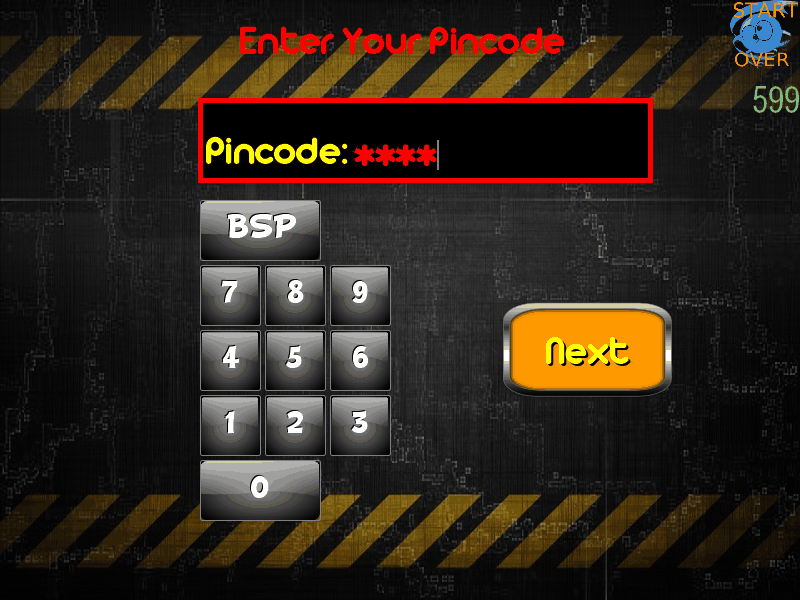
A singer who's new to the venue is signed up on the spot: they choose a screen name and a 4-digit PIN, and have their photo taken if the venue uses photos.
In Party mode there are no accounts. A singer types a name and goes straight to the songs: no PIN, no card. The tabs are just Search and Browse, and a song offers Queue this as a new song to sing or Go back. Typing the same name again adds another song for that singer.
Finding a song
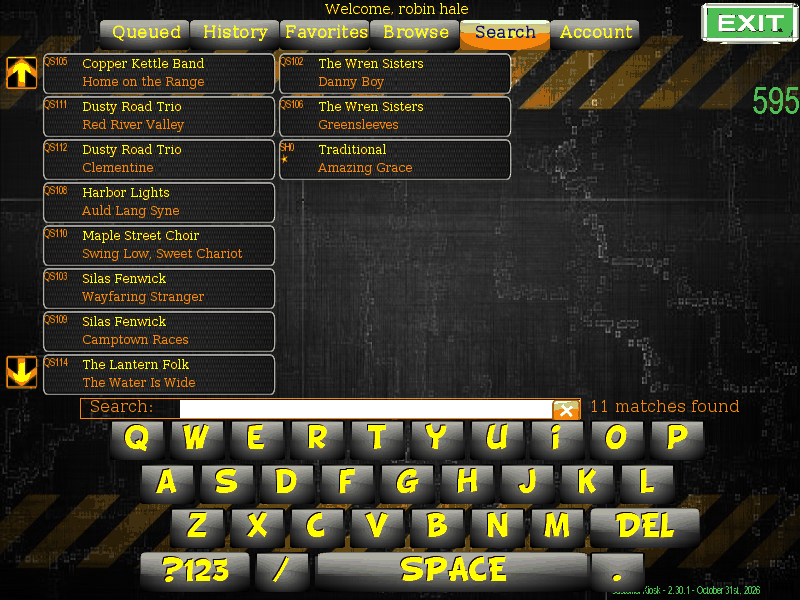
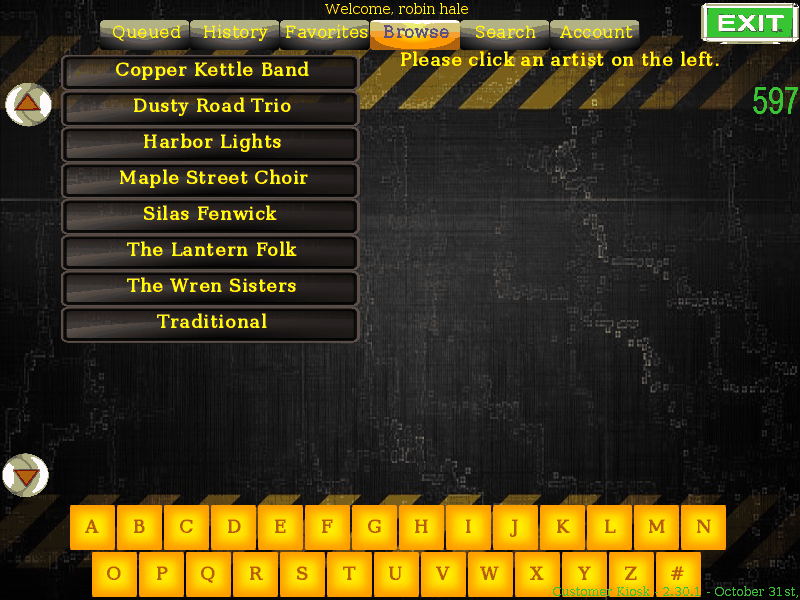
Once signed in, the tabs along the top are Queued, History, Favorites, Browse, Search and Account.
- Search lists the venue's songs and narrows them down as the singer types, by artist or title.
- Browse lists the artists. Tap one to see their songs, or jump down the list with the letters at the bottom.
- History and Favorites list the songs the singer has sung before and the ones they saved.
Queueing it
Tapping a song opens Confirm Selection:
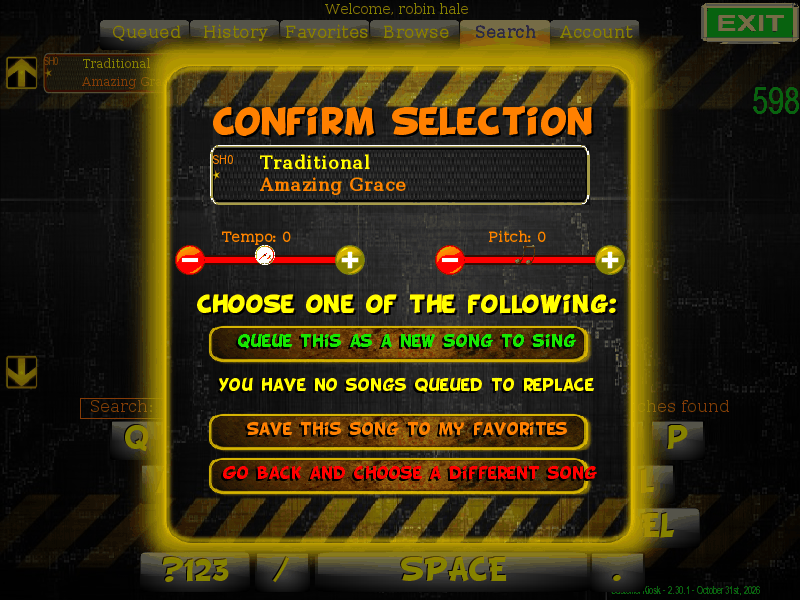
- Tempo and Pitch: the singer's own speed and key for this song, with − and +.
- Queue this as a new song to sing.
- Replace a song I already queued: swap one of their queued songs for this one.
- Save this song to my favorites.
- Go back and choose a different song.
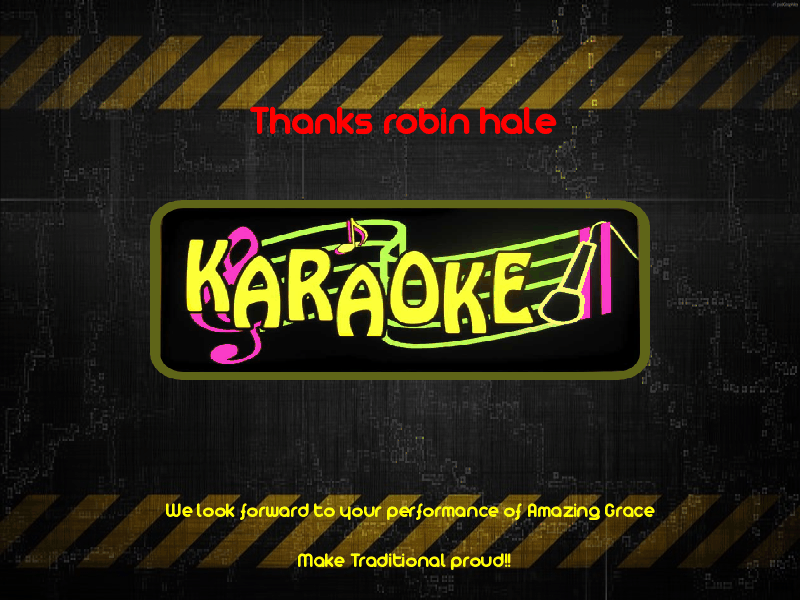
When the song is queued, the kiosk thanks the singer by name and goes back to the start for the next one.
Their queue, credit and account
- Queued shows the singer's songs in the queue. The up and down buttons change their order, and the red X takes a song out. If the venue allows paying to jump ahead (Preferences → Misc → Bribe), tapping a song offers Want to sing sooner? with the price.
- Credit. When singing costs credit and the singer has none left, the kiosk says You Need To Purchase Credits and sends them to the bar. A kiosk with a bill validator takes notes instead.
- Buying a song. If the venue sells songs through SongShop, a song the venue doesn't have yet offers Purchase this song for the venue, and the kiosk shows the download until it's ready to queue.
- Account shows the singer's card number, screen name and other details.
Running it day to day
- Closing the kiosk. Full screen, the kiosk has no close button: press Alt+F4 on a keyboard. In a window (debug mode), close the window.
- After a restart the kiosk connects by itself and asks its two startup questions, which answer themselves.
- A new kiosk code. If you press New code… on the engine's Kiosk Security page, every kiosk that used the old code asks for the new one the next time it starts.
- A different engine PC. If the engine moves to another PC or address, the kiosk can't reach it at its next start and asks for the new address.
Updating
The kiosk doesn't update itself. When the Download page has a newer version:
- Windows installer: close the kiosk and run the new installer. It installs over the old one and keeps the kiosk's connection to the engine and its other settings.
- Linux: close the kiosk and extract the new download over the old folder. Your settings aren't in the download, so they stay as they are.
- Zip: close the kiosk and unzip the new zip over the old folder.
Troubleshooting
"Nothing answered at …" when it starts. The kiosk can't reach the engine at that address. Check the address and port, that QUP Karaoke is running on that PC, and that Enable HTTPS Server (Mobile & Kiosk) is ticked in its Preferences → General → Network. Then press Connect again.
"The engine didn't accept that kiosk code." Copy the code again from the engine's Preferences → Display → Kiosk Security. If someone pressed New code… there, only the new code works.
"Too many attempts. Try again in … seconds." The engine stops listening to a kiosk for a short time after several wrong codes. Wait, check the code, and try again.
"This is not the venue's engine." The engine at that address shows a different certificate from the one the kiosk remembers. This happens when the engine was reinstalled or its certificate was renewed (New certificate… on Kiosk Security). Press Check the engine's new fingerprint and compare it with Certificate on the engine's Kiosk Security page. If they don't match, something on the network is pretending to be the engine: don't press It matches.
"PLEASE SIGN IN AGAIN" on a singer's screen. The engine restarted while they were signed in. They just sign in again.
Photos don't work. Tick Use Photos on the engine (Preferences → Display → Kiosk), then start the kiosk, answer Yes to Choose setup mode, and choose the camera.
The bill validator doesn't take notes. Check Enable DBV for this kiosk in the engine's Registered Kiosks list, and the DBV Serial Port in the kiosk's setup. On Linux, the kiosk's user must be in the dialout group (see Installing).
Removing it from Windows. Use Uninstall QUP Karaoke Kiosk in the Start menu, or Windows' Installed apps. The kiosk's settings, photos and logs are inside its folder, so they go too.
Updated on version 2.35.0, October 31, 2026