Settings-Scroller
Scroller
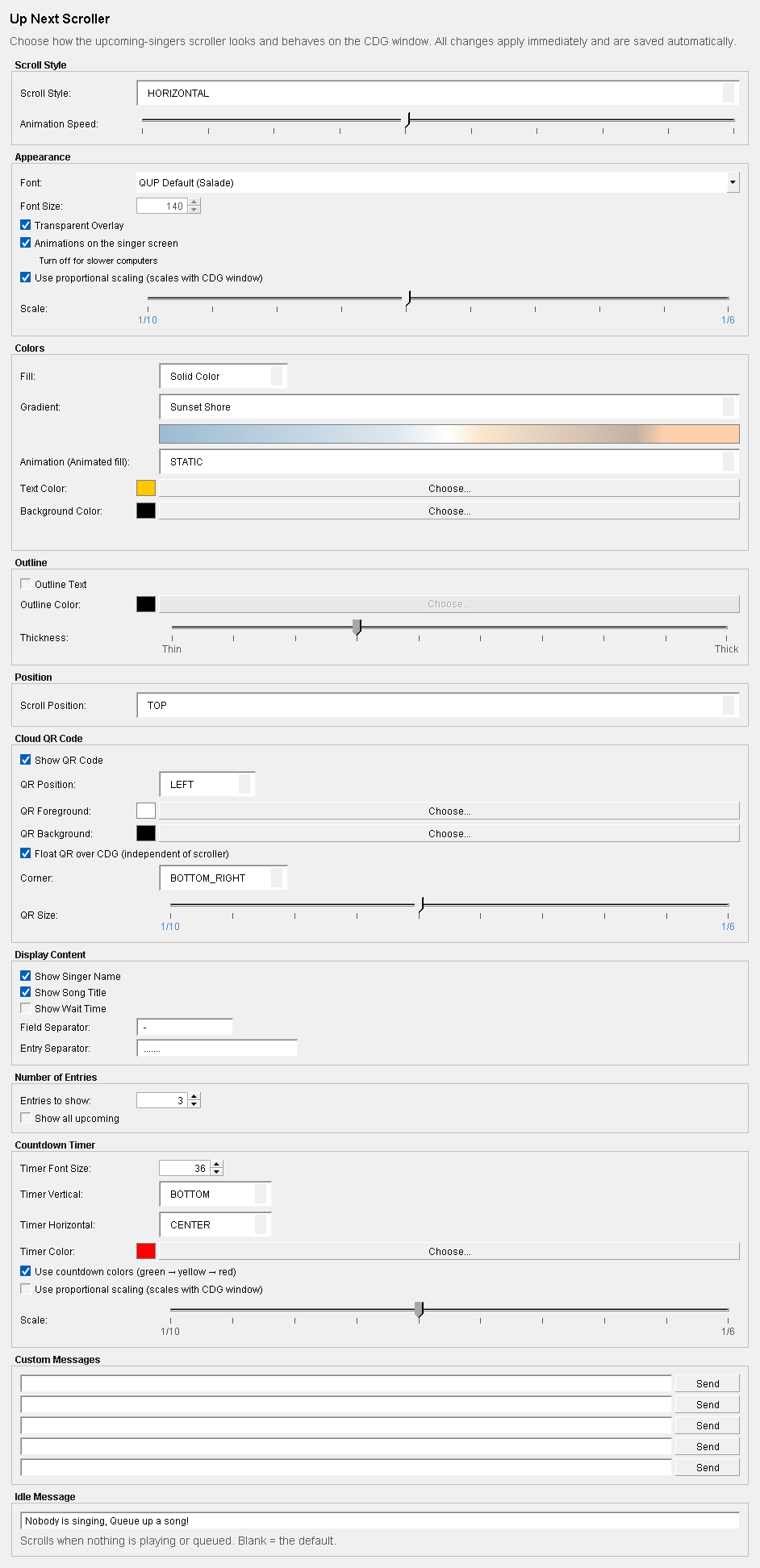
Open Preferences (Ctrl+P) and choose Display → Scroller. This page sets the Up Next strip on the singer screen, the one that shows who's singing next, and the countdown timer beside it. Every change shows on the singer screen at once and is saved as you make it.
Right-click the singer screen to show or hide the strip (Up Next) and the timer (Countdown).
Scroll Style
Scroll Style — How the strip moves: HORIZONTAL (the classic right-to-left scroll), VERTICAL_LIST, STAR_WARS_CRAWL, TYPEWRITER, MATRIX, KARAOKE_BOUNCE, FADE, WAVE, FLIP or SLIDE_UP.
Animation Speed — How fast it moves, on a scale of 1 to 10 (5 by default).
Appearance
Font — QUP Default (Salade), or any font on this computer.
Font Size — The text size, when proportional scaling (below) is off.
Transparent Overlay — On by default: the strip and the timer float over the song's picture. Off, they sit in their own black bands above or below it, and the picture shrinks to make room.
Animations on the singer screen — On by default. Turn it off on slower computers: Cheer items then come and go without fading, floating or scrolling.
Use proportional scaling (scales with CDG window) — On by default: the text keeps the same size relative to the singer screen whatever its size. Scale sets how big, from 1/10 to 1/6 of the screen's height.
Colors and Outline
Fill — Solid Color, Gradient or Animated.
Gradient — The gradient for a gradient fill, with a preview under it. Import .ggr... at the end of the list adds a GIMP gradient file; imported ones are listed under -- Imported -- and also offered on the Lyrics page.
Animation (Animated fill) — The colour effect for an animated fill: STATIC, RAINBOW_CYCLE, RAINBOW_WAVE, FIRE, ICE, NEON_PULSE, MATRIX_GREEN, GOLD_SHIMMER, PARTY or Two-Color Sweep.
Text Color, Background Color — Click Choose... to pick each one. The swatch shows the current colour. Gradient End Color appears too when the fill is Animated with Two-Color Sweep: it's the sweep's second colour.
Outline Text — Draws an outline round the letters, in the Outline Color, with a Thickness from Thin to Thick.
Position
Scroll Position — TOP or BOTTOM of the singer screen.
Cloud QR Code
The QR code singers scan with their phones to join your venue and queue songs. It comes from QUP Cloud, so your venue needs to be linked (see Cloud). It changes by itself as singers join.
Show QR Code — On by default.
QR Position — LEFT or RIGHT end of the strip. It is greyed out while the QR floats (below).
QR Foreground / QR Background — Its colours. Keep strong contrast so phones can read it.
Float QR over CDG (independent of scroller) — On by default: the QR sits in a corner of the singer screen instead of in the strip. Corner picks which one, and QR Size how big.
Display Content
Show Singer Name, Show Song Title, Show Wait Time — What each entry shows.
Field Separator — What goes between those (" - " by default).
Entry Separator — What goes between one singer and the next (" ....... " by default).
Number of Entries
Entries to show — How many singers are listed (3 by default). Show all upcoming lists everyone in the rotation instead.
Countdown Timer
The time left in the current song.
Timer Font Size, Timer Vertical (TOP or BOTTOM), Timer Horizontal (LEFT, CENTER or RIGHT), Timer Color.
Use countdown colors (green → yellow → red) — On by default: the timer changes colour as the song nears its end.
Use proportional scaling and Scale — As for the strip, for the timer.
Custom Messages
Five message lines. Type a message and click Send: it runs in the strip for up to about 12 seconds, then the strip goes back to Up Next. The messages are kept here, ready for next time.
During a show it's quicker to use Send Message in QUP's right-click menu: five lines with Send, a Clear that takes a message off the screen at once, and Clear All.
Idle Message
What the strip says when nothing is playing or queued. Leave it blank for the default, "Nobody is singing, Queue up a song!".
Updated on version 2.35.0, October 31, 2026