Cheer
QUP Cheer
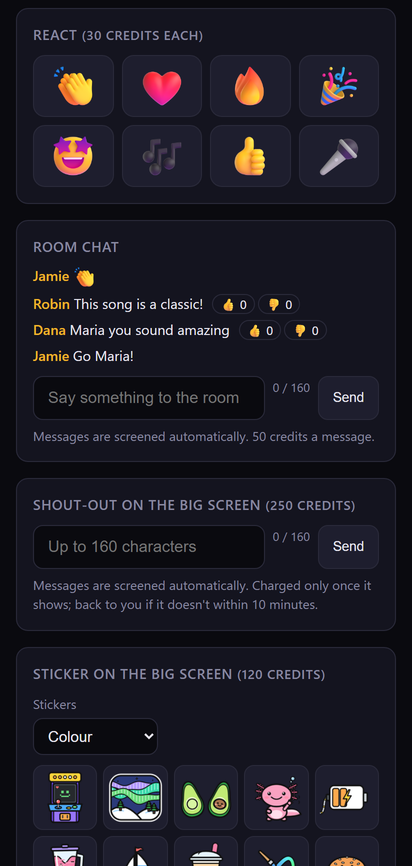
QUP Cheer lets the people in the room join in from their phones. From the same page they use to put their name down for a song, they can send:
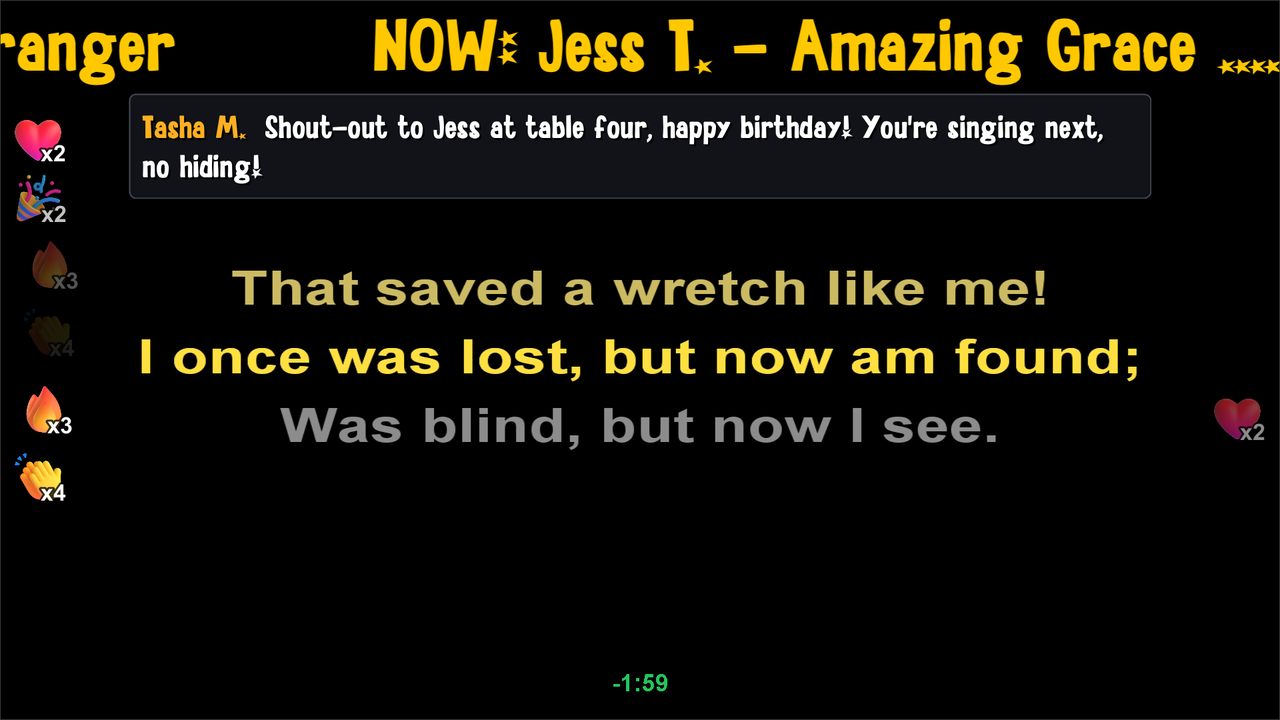
- emoji reactions that float up the sides of the singer screen
- chat in the room's chat band
- animated stickers that play in a corner of the singer screen
- shout-outs, a line of text for the whole room
- Roast me, where a singer asks the room to roast their song
Everything shows on the singer screen while the KJ stays in charge: the KJ chooses what the room may send, can pull anything off the screen at once, and can mute someone for the night.
What you need
- QUP Karaoke Engine 2.34.0 or newer. The Cheer settings page under Preferences → Display needs 2.35.0.
- A venue linked to QUP Cloud (Preferences → General → Cloud; see Cloud). The Cheer panel tells you how to link it if it isn't.
- The singer screen open. Cheer items appear on it.
Prices
Cheer is paid for with Q-Up credits. 1,000 credits are worth $1. The prices are the same at every venue.
| Item | Credits | About |
|---|---|---|
| Emoji reaction | 30 | 3¢ |
| Chat message | 50 | 5¢ |
| Sticker | 120 | 12¢ |
| Shout-out | 250 | 25¢ |
| Roast me (per song) | 250 | 25¢ |
When you pay: a reaction or a chat message is paid when it's sent. A sticker, a shout-out or a Roast me is paid only once it starts on the singer screen. If it never makes it to the screen (the KJ pulls it first, say), you aren't charged.
Credit packs
Credits are bought on the phone, on the venue's page, by card.
| Pack | Credits |
|---|---|
| $2.50 (Try it) | 2,000 |
| $5 | 5,000 |
| $10 (Best value) | 11,000 |
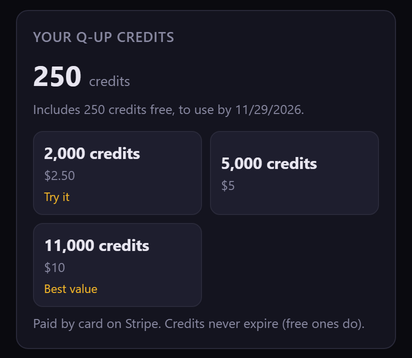
- Welcome credits: a new wallet gets 250 free credits, once per email address. Free credits are spent first and expire 30 days after they're given.
- Credits you buy never expire.
- To buy credits you need a verified email address and a passkey on your phone (the phone's own sign-in, such as a fingerprint or face). Reactions and chat paid by the house need neither.
House credits
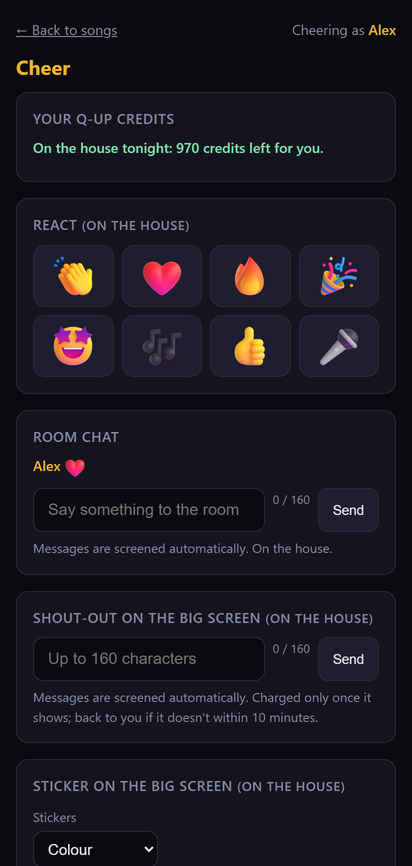
A venue can pay for the room instead. In the Cheer panel the KJ chooses who pays: the audience, the house, or both, and how many credits the house pays for each person tonight.
- Where the house pays, people see no prices and no buy button. Their items say "on the house", and each person sees how many credits the house has left for them tonight.
- Buy credits for the room in the Cheer panel lists the same packs. The payment page opens in your browser, the receipt goes to the venue's email, and the credits arrive in the room's pool once it's paid.
- The pool shows its balance and warns when it runs low (under 2,000 credits by default). Pause house credits stops it at any time.
The KJ is always free
The KJ can announce, chat, react and send stickers from the Cheer panel at no charge. Whatever the KJ sends is marked with a KJ pill on the singer screen, in the KJ's own colour (sky blue unless you change it). Announcements and KJ messages up to 160 characters go straight to the screen without being checked.
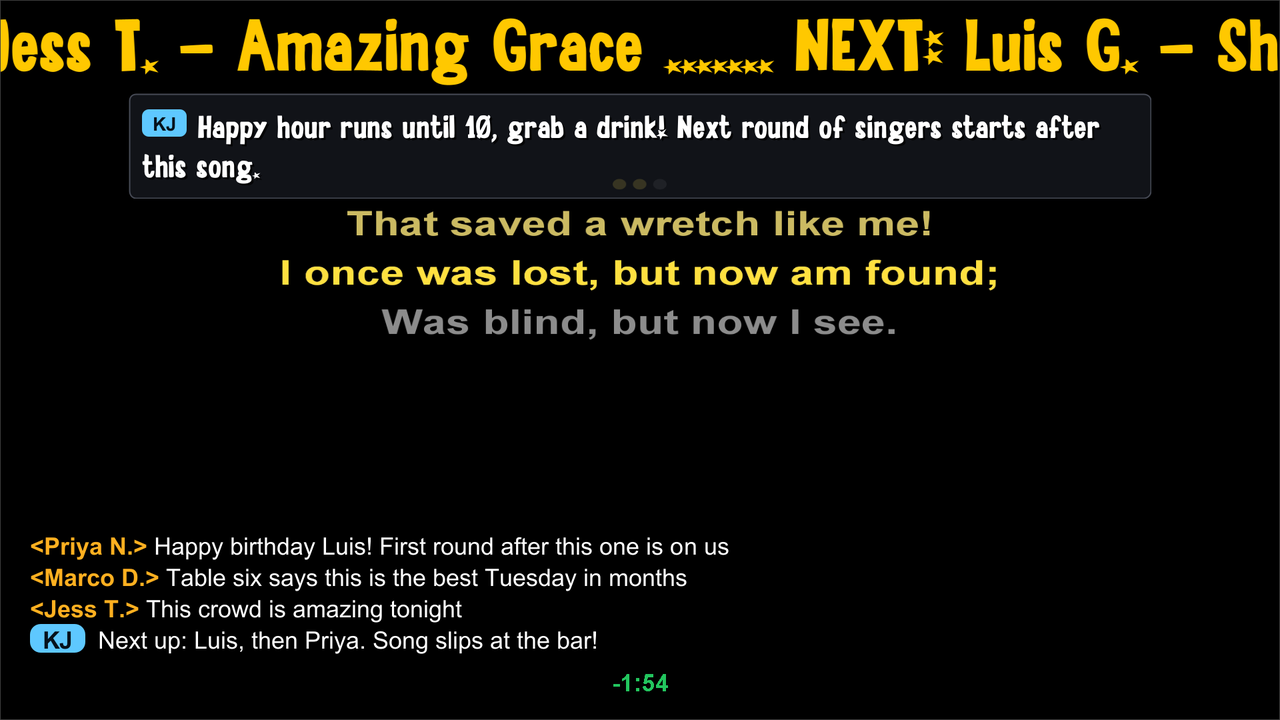
Keeping it friendly
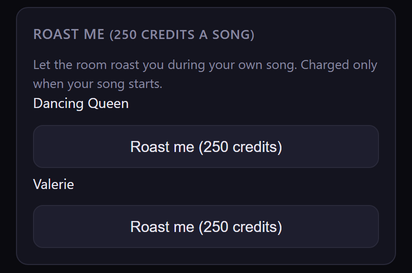
- Roast me: a singer picks one of their own songs in tonight's rotation and asks the room to roast it. It's 250 credits a song, paid only when the song starts.
- Moderation level: the KJ sets the venue's level in the Cheer panel: Family, Bar or Roast. A singer's Roast me can go no higher than the level the KJ allows.
- Every message is checked before it reaches the screen. Insults aimed at a named person are always blocked, at every level.
- Text is limited to 160 characters for chat and shout-outs.
- The room can vote chat, shout-outs and stickers up or down. A line the room votes down comes off the phones until the KJ says it looks fine.
- The KJ is in charge: in the Cheer panel, right-click a line to pull it off the screen or remove it everywhere, and right-click a person to mute them for the night or report them to QUP. Pull all off the screen (Ctrl+Shift+P) clears the screen in one go.
Setting it up in QUP
The Cheer panel
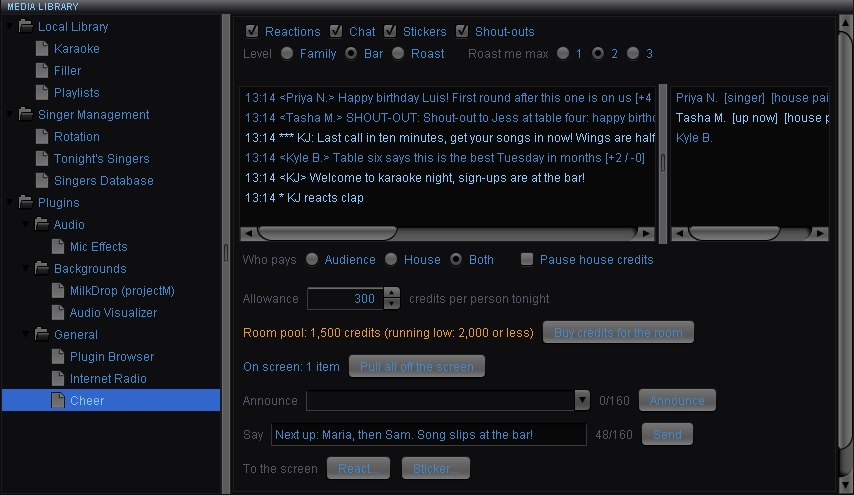
Open Media Library > Plugins > General > Cheer. Right-click the panel and choose Pop out to give it a window of its own. From the panel you can:
- turn reactions, chat, stickers and shout-outs on or off
- set the moderation level and the highest level a Roast me may reach
- read the room's chat, see who's in tonight and who's up now
- send announcements (with saved templates), chat, reactions and stickers as the KJ
- run house credits
Where Cheer appears: Preferences → Display → Cheer (2.35.0)
Choose how each kind of item looks and moves on the singer screen:
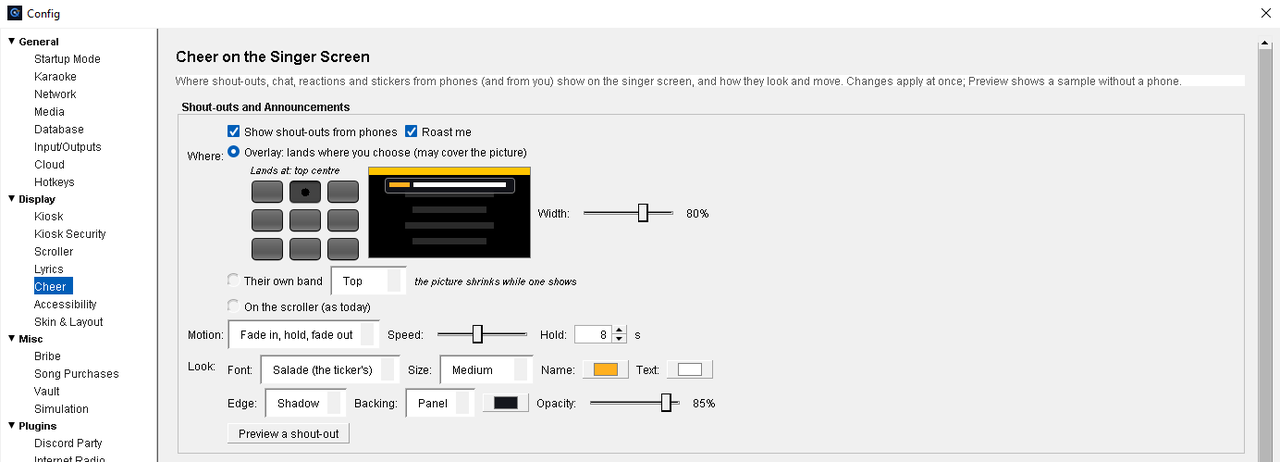
- Shout-outs: an overlay at one of nine spots on the picture, at the width you choose; a band of their own at the top or bottom (the picture shrinks out of the way and comes back after); or on the scroller. They land at the top centre by default.
- Chat: its band at the bottom or the top, or an overlay, and how many lines show.
- Stickers: which corner and how big.
- Reactions: the left and right columns on or off, their size, and whether they float up or pop.
- For each one: fade in, pop in, scroll across once or none; the font, size, colours, edge and backing; and how long it stays.
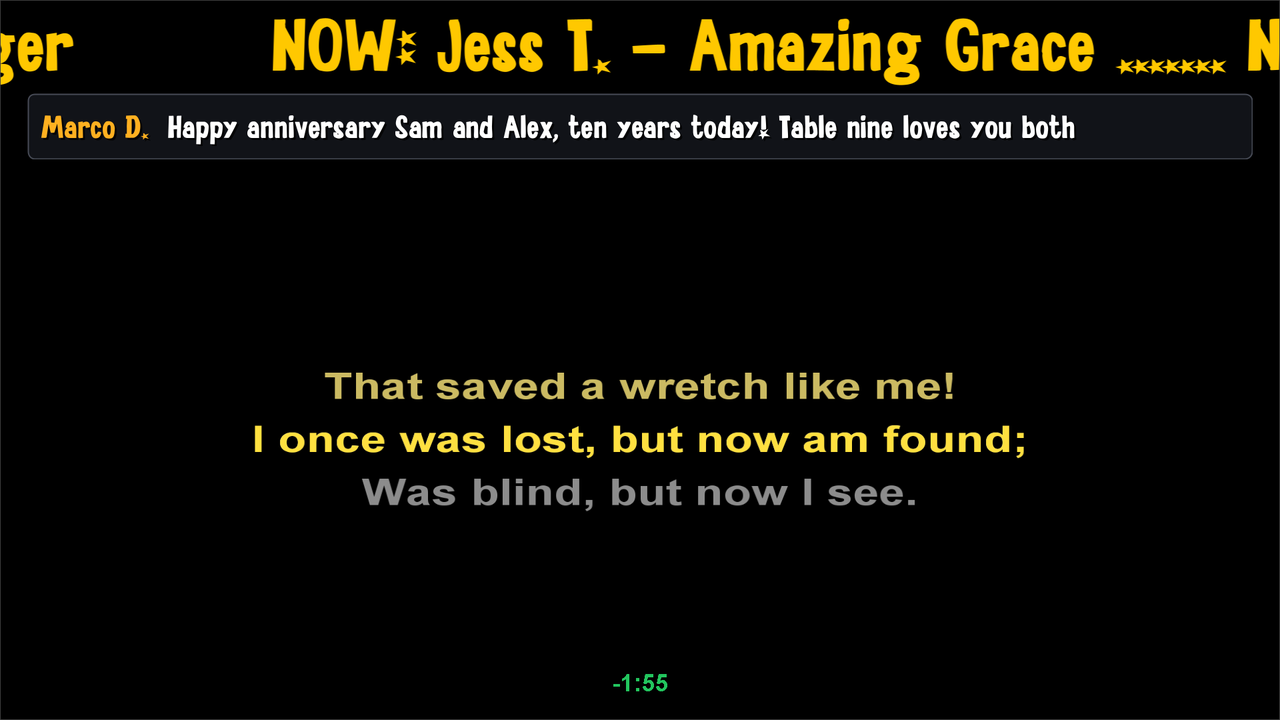
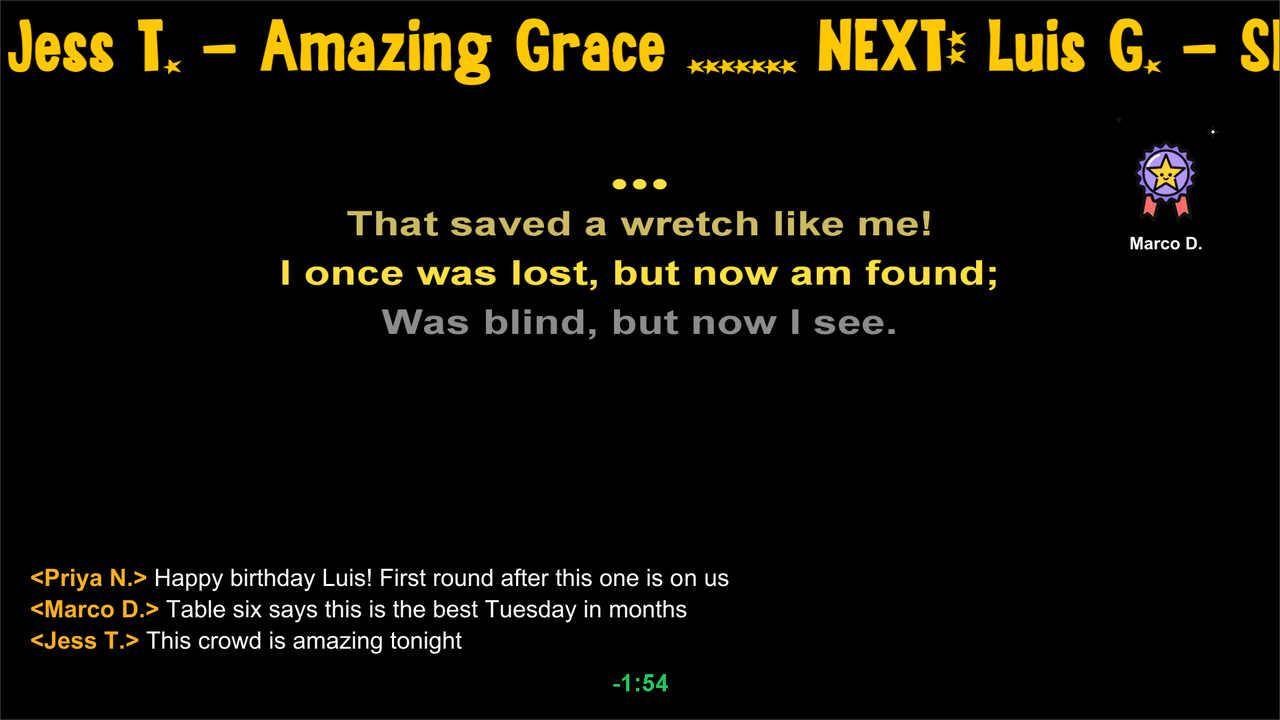
Preview puts a sample of each kind on the singer screen so you can see a change before the room does. Nothing goes to the phones and no credits are used.
Cheer on your stream: OBS overlay… (2.37.3)
If you stream your show with OBS Studio, the room's Cheer can appear over your stream too. In the Cheer panel, press OBS overlay…:
- Tick Show Cheer on the stream (an OBS Browser Source).
- Under Show, tick what the stream should carry: Chat, Shout-outs, Reactions and Stickers.
- Copy URL, then in OBS: Sources, +, Browser. Paste the URL and set the width to 1920 and the height to 1080. Add it to the scene that's live: OBS draws a Browser Source only while its scene is live. Or let the OBS Recording plugin add it for you with Add the Cheer overlay to OBS.
Items show on the stream at the same moment the singer screen shows them, and anything you pull off the singer screen comes off the stream too. The window also sets the chat's corner (Chat position), Text size (px), Chat lines, Chat width (% of the picture) and how long lines stay on screen. Send a test message puts a sample on the stream so you can check it in OBS.
The overlay is off until you turn it on, and it runs only on this computer. New URL... makes a new link, and the old one stops working: paste the new one into OBS. It needs Cheer 1.3.0 and QUP 2.37.3 or newer.
With Animations on the singer screen turned off (Preferences → Display → Scroller), Cheer items come and go without fading, floating or scrolling. Use it on slower computers.
Updated on version 2.37.3, November 13, 2026