Settings-Skin-and-Layout
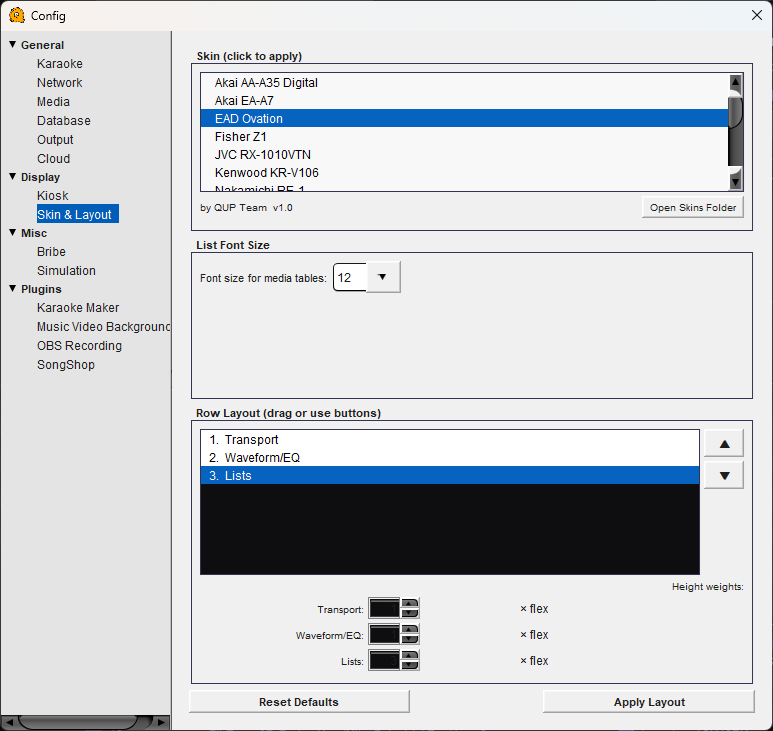
Skin & Layout Configuration
Skin
QUP comes with 14 built-in skins themed after classic audio receivers. Click any skin in the list to apply it immediately. Each skin changes the color scheme of the entire interface — VFD display, transport controls, panels, and backgrounds.
Open Skins Folder — Opens the skins directory on your computer so you can add, edit, or manage custom skin files. Skins are stored as .properties files.
List Font Size
Font size for media tables — Controls the text size in the song browser, playlist, and rotation tables. Increase this for better readability on large or distant screens. Default is 12.
Row Layout
QUP's main window is divided into three horizontal rows. You can reorder them and control how much vertical space each one gets.
Transport — The playback controls row: play/pause/stop buttons, song title display, VFD timer, volume sliders, and visualizer bar.
Waveform/EQ — The waveform display and 10-band equalizer.
Lists — The song browser, playlist, and rotation tables.
Use the up/down arrow buttons or drag to rearrange the rows. For example, you might want Lists at the top if you spend most of your time browsing songs.
Height weights — The sliders next to each row control how much of the window height that row takes up relative to the others. The "× flex" multiplier determines the proportion — a row with a higher weight gets more space. Adjust these to give more room to the sections you use most.
Reset Defaults — Restores the row order and height weights to their factory settings.
Apply Layout — Saves and applies your layout changes.