Settings-Accessibility
Accessibility
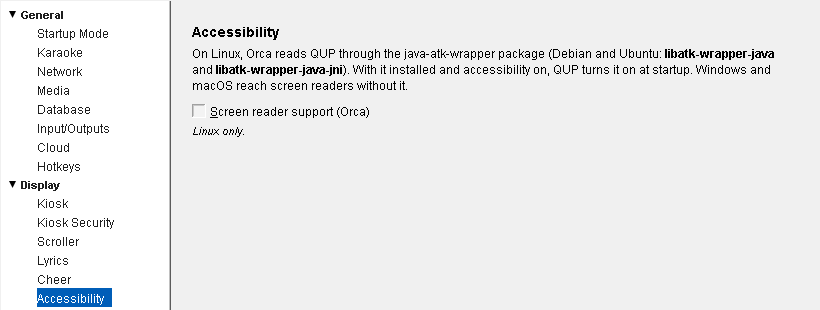
Open Preferences (Ctrl+P) and choose Display → Accessibility.
Screen reader support (Orca)
This setting is for Linux. On Windows and macOS, screen readers reach QUP without it, and the box is greyed out ("Linux only").
On Linux, Orca reads QUP through the java-atk-wrapper package. On Debian and Ubuntu, install libatk-wrapper-java and libatk-wrapper-java-jni. With it installed and the desktop's accessibility on, QUP turns it on at startup.
Screen reader support (Orca) — On by default. It takes effect the next time QUP starts. The line under it says where things stand:
- On: Orca can read QUP.
- On, but java-atk-wrapper is not installed. Install the packages above.
- On. It starts when Orca or the desktop's accessibility is on.
- Off after a startup problem. QUP turned it off because QUP didn't start properly with it. Tick it to try again the next time QUP starts.
- Off. Orca cannot read QUP.
High Contrast and text size (Windows)
QUP follows two Windows settings by itself; there is nothing to set here.
- High Contrast. When Windows' High Contrast is on, QUP's windows use a black, white and yellow high-contrast look in place of the colour skin and any skin pack. The skin you chose is kept and comes back when High Contrast is off.
- Text size. QUP's text follows Windows' Make text bigger setting. The singer screen is sized to your TV, so it doesn't change.
To calm the singer screen's decorative motion (Cheer items fading, floating and scrolling), untick Animations on the singer screen under Scroller.
Updated on version 2.35.0, October 31, 2026