Main-Karaoke-Maker
Karaoke Maker
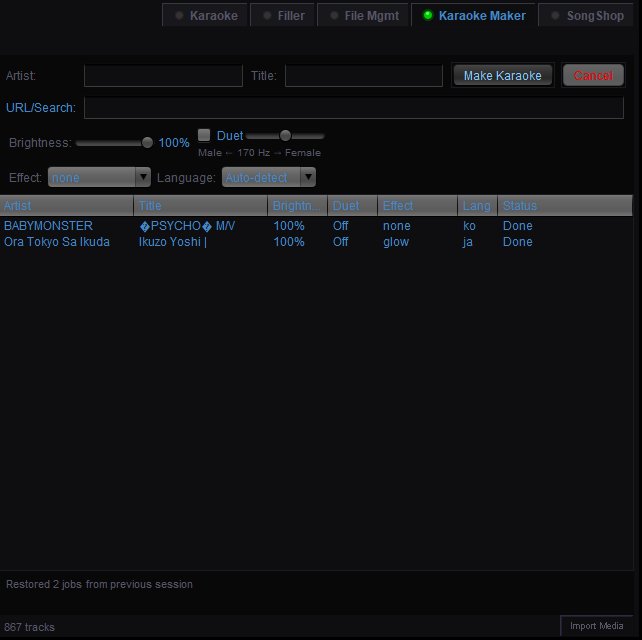
The Karaoke Maker tab in the Song Browser lets you create karaoke tracks from regular songs using AI. Enter a song, and QUP downloads the audio from YouTube, separates the vocals from the instrumental using Demucs, and generates timed lyrics using Whisper — producing a ready-to-sing karaoke track.
Before using Karaoke Maker, make sure you have run the tool setup in the Karaoke Maker configuration panel.
Creating a Track
Artist — The artist name for the track you want to create.
Title — The song title.
URL/Search — A YouTube URL for the specific video to use, or a search term. If left blank, QUP searches YouTube automatically using the artist and title.
Make Karaoke — Starts the karaoke creation process. The job is added to the queue below.
Cancel — Cancels the current job in progress.
Output Settings
These settings are applied per-job and can be adjusted before clicking Make Karaoke:
Brightness — Controls the brightness of the background video behind the lyrics. Lower values make lyrics easier to read. Default is 100%.
Duet — Enables duet mode. When checked, the vocal separation produces two tracks. The slider adjusts the frequency split point between male and female vocal ranges, centered at 170 Hz.
Effect — Apply a visual effect to the karaoke output. Options include "none", "glow", and others. Effects add visual flair to the lyrics display.
Language — The language of the song for lyrics transcription. Set to "Auto-detect" to let Whisper determine the language automatically, or select a specific language if auto-detection struggles.
Job Queue
The table below the settings shows all karaoke creation jobs:
Artist — The artist name for the job.
Title — The song title.
Brightness — The brightness setting used for this job.
Duet — Whether duet mode is on or off.
Effect — The visual effect applied.
Lang — The detected or selected language.
Status — The current state of the job (e.g. "Done", "Processing", "Downloading"). Jobs are processed in order and persist across sessions — if you close QUP, unfinished jobs resume when you reopen.
Right-Click Context Menu
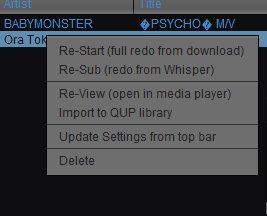
Right-click a job in the queue for additional options:
Re-Start (full redo from download) — Starts the entire process over from scratch — re-downloads the audio and re-runs vocal separation and lyrics transcription. Use this if the original download was bad or if you want to try a different YouTube source.
Re-Sub (redo from Whisper) — Re-runs only the lyrics transcription step without re-downloading or re-separating the audio. Useful if the lyrics timing was off and you want to retry with different language or model settings.
Re-View (open in media player) — Opens the finished karaoke track in your system's default media player so you can preview it before importing.
Import to QUP library — Adds the finished karaoke track to your QUP media library so it appears in the Karaoke song browser and can be queued for singers.
Update Settings from top bar — Applies the current brightness, duet, effect, and language settings from the top bar to this job. Useful if you want to change settings on an already-completed job before re-processing it.
Delete — Removes the job from the queue and deletes the generated files.