Settings-Output
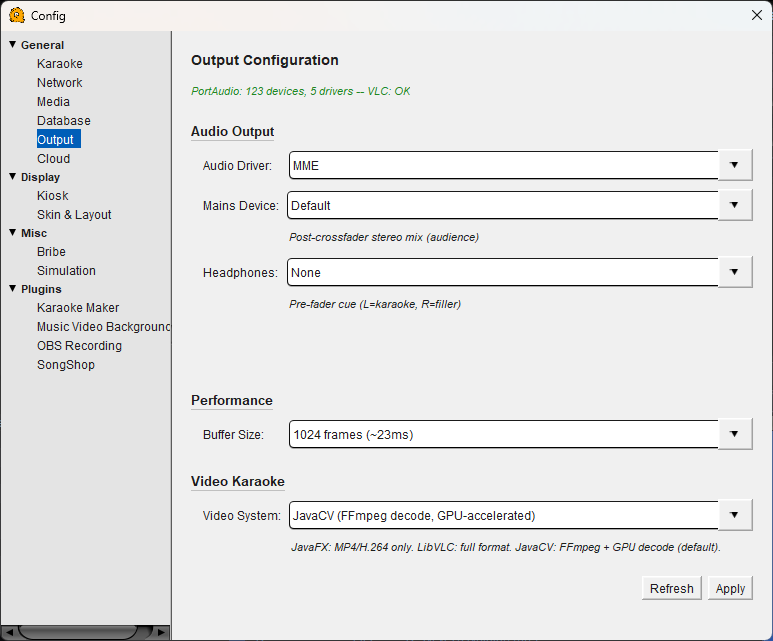
Output Configuration
The status line at the top shows how many audio devices and drivers PortAudio has detected, and whether VLC is available.
Audio Output
Audio Driver — Select the audio driver QUP uses for playback. Options depend on your operating system. On Windows, WASAPI is recommended for the lowest latency. MME is the most compatible but has higher latency.
Mains Device — The audio output device for your audience. This carries the post-crossfader stereo mix — everything your crowd hears, including karaoke tracks and filler music.
Headphones — An optional second audio output for the host. This provides a pre-fader cue mix with karaoke on the left channel and filler on the right channel, letting you preview or monitor audio before it goes to the room. Set to "None" to disable.
Performance
Buffer Size — Controls the audio buffer size in frames. Smaller buffers reduce latency but increase the chance of audio glitches on slower hardware. Larger buffers are more stable but add a slight delay. The default of 1024 frames (~23ms) is a good balance for most systems. If you hear crackling or dropouts, try increasing the buffer size.
Video Karaoke
Video System — Select the engine QUP uses to decode and display video karaoke files (MP4, MKV).
- JavaCV (FFmpeg decode, GPU-accelerated) — The default and recommended option. Uses FFmpeg for decoding with GPU acceleration when available. Supports all common video formats.
- JavaFX — Lightweight option but limited to MP4/H.264 files only.
- LibVLC — Uses the VLC engine for full format support. A good fallback if JavaCV has issues on your system.
Refresh — Re-detects available audio devices and drivers without restarting QUP.
Apply — Saves your output settings. Audio device changes take effect immediately.