Settings-MilkDrop-Plugin
MilkDrop (projectM) Configuration
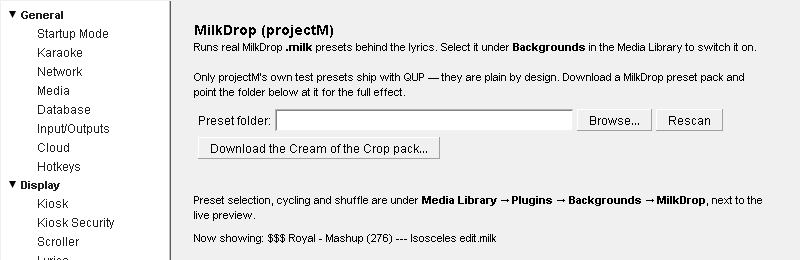
MilkDrop (projectM) comes with QUP. Its settings are in Preferences → Plugins → MilkDrop (projectM) (Preferences is Ctrl+P). You pick presets, cycling and playlists in Media Library → Plugins → Backgrounds → MilkDrop (projectM), next to a live preview.
MilkDrop is the classic music visualizer from Winamp. projectM is the open-source version of it, and it runs real MilkDrop .milk presets. QUP draws them behind the lyrics while a singer is on, and they move with the karaoke track.
It works on Windows, Mac and Linux.
Choose it as your background
Only one background can be drawn behind the lyrics at a time. To check which one is in use, or to choose MilkDrop, either:
- In Preferences, click the Plugins heading and choose MilkDrop (projectM) under Background Visualization, or
- In the Media Library, open Plugins → Backgrounds → MilkDrop (projectM) and select Use this background.
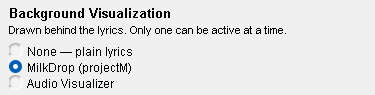
None — plain lyrics turns backgrounds off. The list also shows any other background you have, such as the Audio Visualizer that also comes with QUP.
The background plays behind karaoke songs, not behind filler. In DJ mode, the DJ Visuals window uses the same choice.
If MilkDrop can't start on a computer (for example, the graphics driver can't give it what it needs), songs play with plain lyrics instead of a black screen.
Settings
Preset folder: where QUP looks for presets. Leave it empty to use the presets that come with QUP. To use a pack you downloaded yourself, type its folder or click Browse…. QUP looks inside sub-folders too, so a pack sorted into category folders works as it is.
Browse…: choose the preset folder. QUP loads the presets from it straight away.
Rescan: reads the preset folder again, for example after you add presets to it.
Download the Cream of the Crop pack…: downloads the Cream of the Crop collection from the projectM project, about 9,800 presets sorted into category folders, plus the pictures some presets use. The presets go into the preset folder in use and are ready as soon as the download finishes. A bar and a status line show progress. You need an internet connection.
Under the buttons, QUP shows how many presets are loaded and from which folder; once a preset is on screen, the line names the one showing ("Now showing: …").
QUP comes with 77 presets: a set of simple test patterns from projectM and a small selection from Cream of the Crop. For the full effect, download the pack.
Presets, cycling and playlists
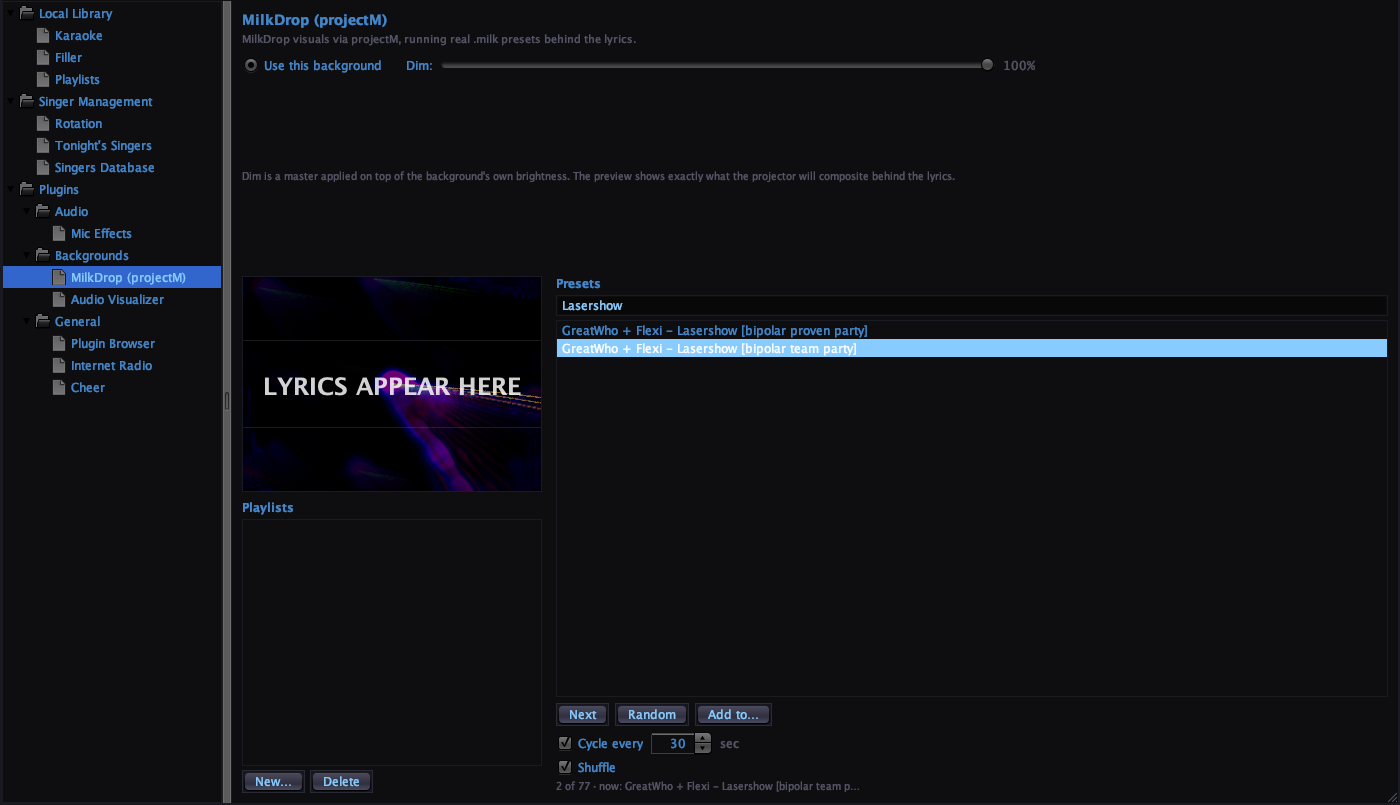
Open Media Library → Plugins → Backgrounds → MilkDrop (projectM). Preset, cycling, playlist and Dim changes take effect as you click, on the singer screen as well, even mid-song.
Use this background: makes MilkDrop the background behind the lyrics. A new choice of background starts with the next song.
Dim: a master brightness for whatever background is drawn behind the lyrics (default 100%). Lower it if the lyrics are hard to read.
Preview: shows exactly what the singer screen will show, with "LYRICS APPEAR HERE" where the lyrics sit, so you can judge whether a preset is too busy or too bright.
Presets: the list of presets. Type in the box above it to narrow the list; it matches the category folder too, so "tunnel" or "Geometric" finds them wherever they are. Click a preset to show it now.
Next: moves to the next preset now.
Random: jumps to a random preset now.
Add to…: puts the highlighted preset in a playlist. Right-clicking a preset does the same.
Cycle every ... sec: changes preset by itself every so many seconds (default on, 30 seconds, from 1 to 600). Turn it off to keep the preset you picked.
Shuffle: cycles in random order instead of down the list (default on). Only available while cycling is on.
Under the list a status line shows how many presets there are, how many are in play, and which one is showing now (or "pinned" when cycling is off).
Playlists are your own short lists of presets, for example the calm ones for a slow night. Click a playlist to tick or untick it. When one or more are ticked, cycling only uses the presets in them; with none ticked, it uses every preset. A ticked playlist that is empty is ignored.
New…: creates an empty playlist.
Delete: deletes the highlighted playlist. The presets themselves are not touched.
QUP remembers the preset you last picked, your cycling choices and your ticked playlists for next time.
Updated on version 2.35.0, October 31, 2026