Settings-Audio-Visualizer-Plugin
Audio Visualizer Configuration
Audio Visualizer draws a moving background behind the lyrics that reacts to the karaoke track. A spectrum of bars runs along the top and bottom edges of the screen, with drifting points of light and a soft wave line near the bottom. The middle of the screen, where the lyrics sit, is kept dark on purpose, so the words stay readable however busy the music gets.
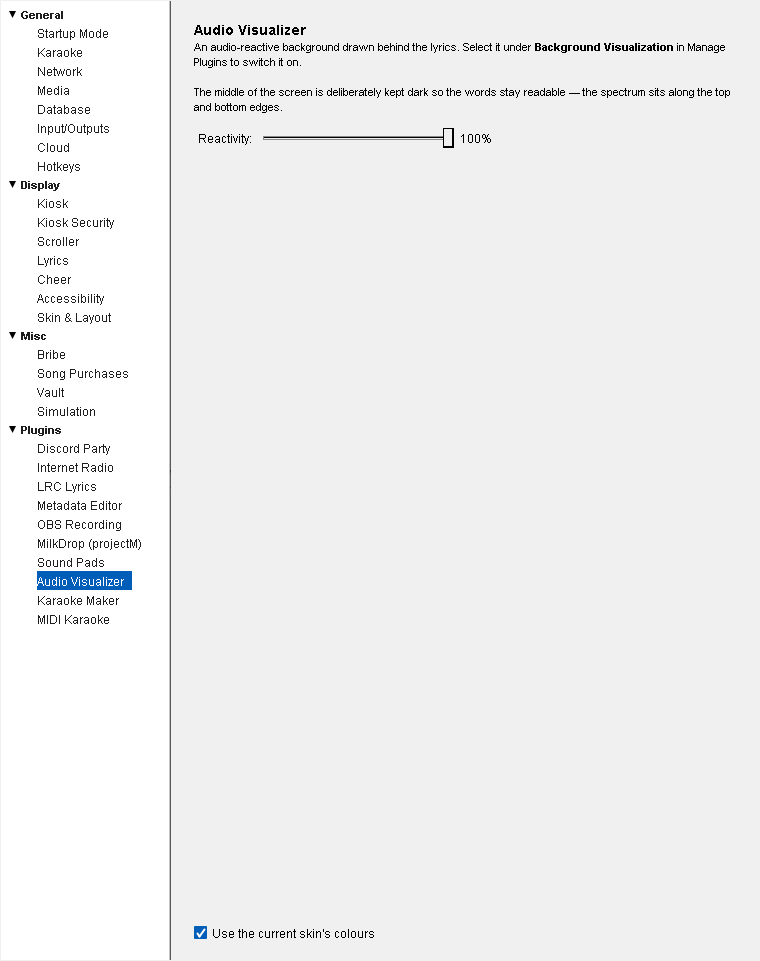
Audio Visualizer comes with QUP and works on Windows, Mac and Linux. Its settings are in Preferences → Plugins → Audio Visualizer (Preferences is Ctrl+P), and its preview is in Media Library → Plugins → Backgrounds → Audio Visualizer.
Choose it as your background
Only one background can be drawn behind the lyrics at a time. To check which one is in use, or to choose Audio Visualizer, either:
- In Preferences, click the Plugins heading and choose Audio Visualizer under Background Visualization, or
- In the Media Library, open Plugins → Backgrounds → Audio Visualizer and select Use this background.
To go back to a plain black background, choose None — plain lyrics under Background Visualization.
A new choice takes effect when the next song starts.
When it shows
The background is drawn behind the lyrics of karaoke songs: CD+G and MP3+G tracks, and tracks whose lyrics are drawn as text (such as MIDI karaoke). Video karaoke files show their own video instead. Filler music between singers doesn't get a background.
In DJ mode, the DJ visuals window uses the same background you picked here.
The Backgrounds page
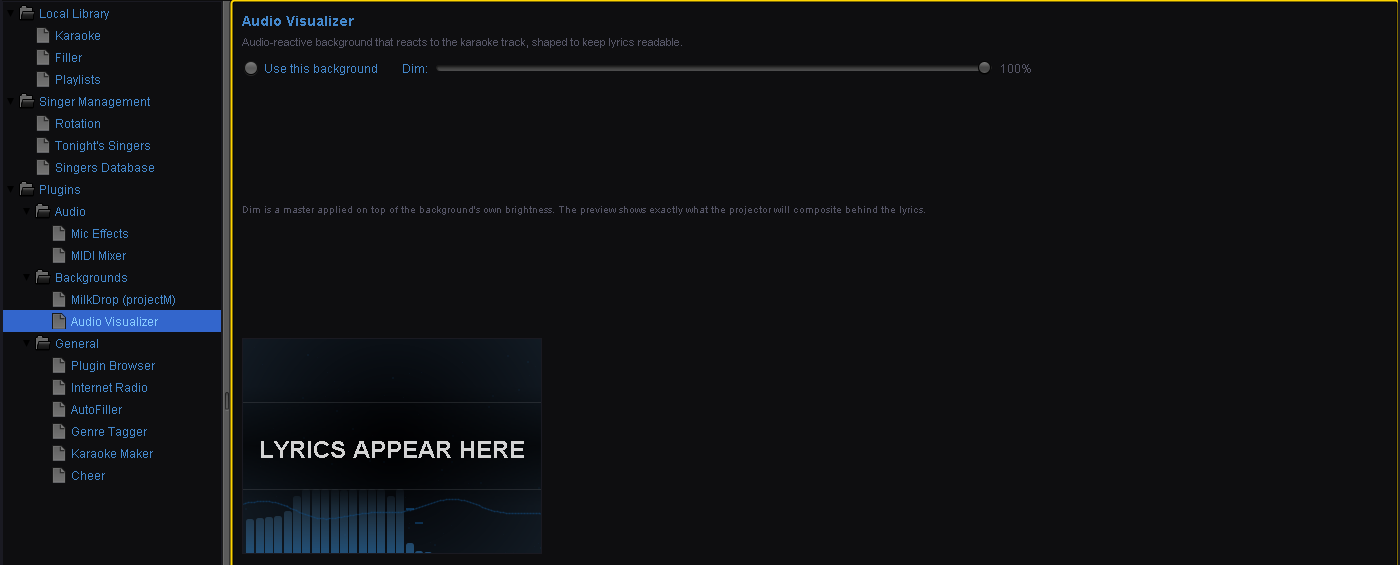
Media Library → Plugins → Backgrounds → Audio Visualizer shows a live preview with "LYRICS APPEAR HERE" across the middle, so you can judge how readable the words will be. The preview reacts while a karaoke song is playing.
Use this background: makes Audio Visualizer the background behind the lyrics.
Dim: a master brightness for whatever background is behind the lyrics (default 100%). Lower it if the background feels too bright in the room. It applies straight away, and it's shared by every background, not just this one.
Settings
Reactivity (20–100%, default 100%): fine-tunes how the bars move. Lower values make the bars drop back faster after each peak; at 100% they hang on a little longer.
Use the current skin's colours (on by default): colours the visualizer to match your QUP skin. When it's off, the visualizer uses a fixed blue.
Both settings show on the next frame. They're saved when you close Preferences.
Updated on version 2.35.0, October 31, 2026